Triggers
Automate workflow execution with manual, scheduled, webhook, and event-based triggers.
Overview
Triggers define when and how workflows execute. M3 Forge supports multiple trigger types:
| Trigger Type | Use Case | Example |
|---|---|---|
| Manual | On-demand execution | Click “Run” in workflow editor |
| Scheduled | Recurring execution | Daily invoice processing at 2am |
| Webhook | External system integration | New document uploaded to S3 |
| Event | Internal system events | Job completed, approval granted |
All triggers are managed via the OPERATE → Automation section and support conditional execution, retry policies, and detailed logging.
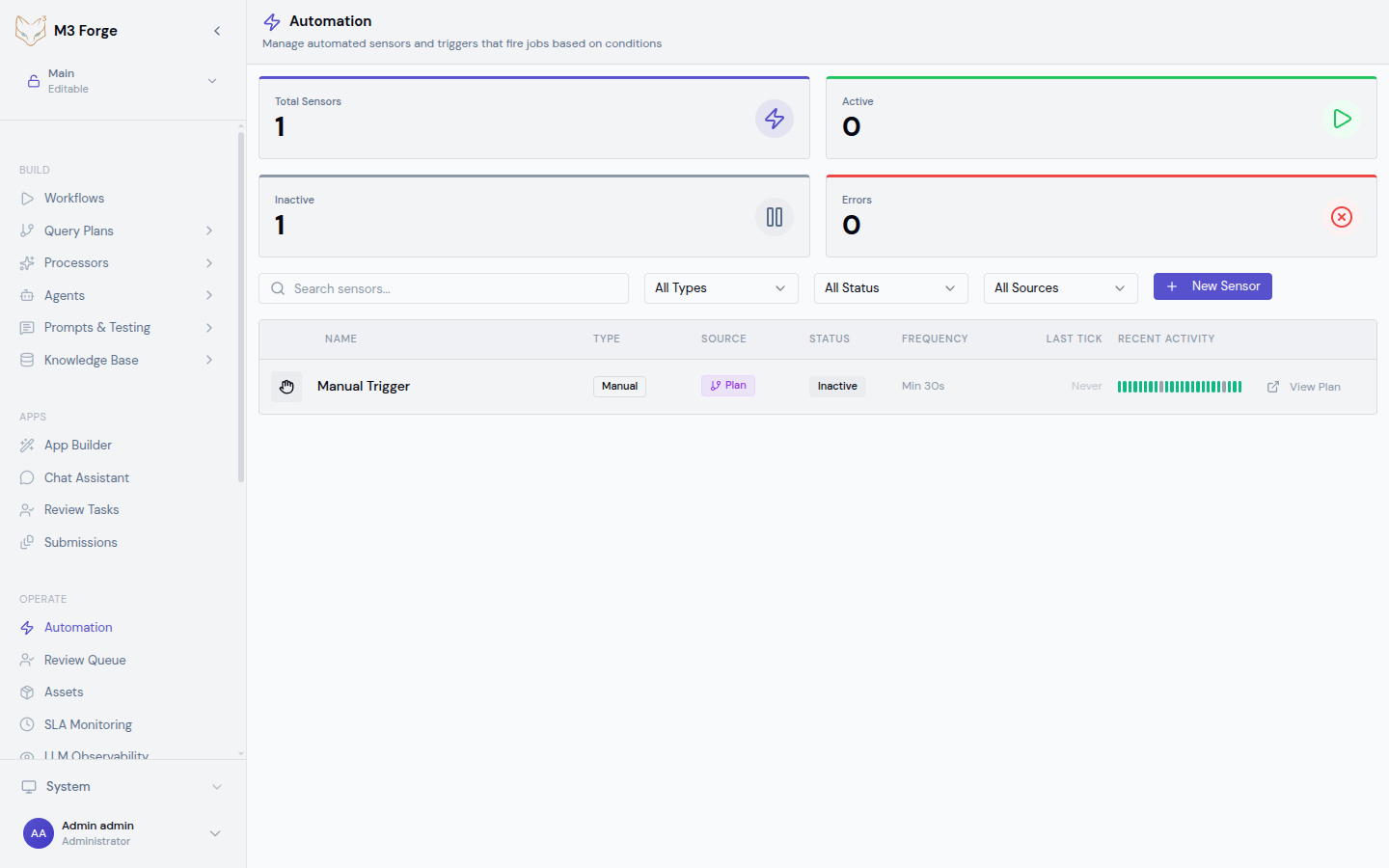
Triggers are part of the broader Automation system. For complex multi-step automations, see the Automation documentation.
Manual Triggers
Execute workflows on-demand from the UI or API.
Via Workflow Editor
- Open workflow in editor
- Click Run in toolbar
- Provide input data in dialog
- Click Start Execution
Useful for testing and ad-hoc execution.
Via API
Call the tRPC endpoint directly:
const run = await trpc.workflows.execute.mutate({
  workflow_id: 'invoice_processing',
  input: {
    document: 'base64_encoded_pdf',
    options: { quality: 'high' }
  }
});

console.log('Run ID:', run.id);
Returns a run ID immediately. Track execution progress via the Runs view.
Via CLI
Use the M3 Forge CLI for scripting:
m3 workflow run invoice_processing \
  --input document=@file.pdf \
  --input options.quality=high \
  --wait
The --wait flag blocks until execution completes.
Scheduled Triggers
Execute workflows on a recurring schedule using cron expressions.
Creating a Schedule
- Navigate to OPERATE → Automation
- Click New Trigger
- Select Scheduled type
- Configure schedule:
| Field | Description | Example |
|---|---|---|
| Name | Descriptive identifier | ”Daily Invoice Processing” |
| Workflow | Target workflow | invoice_processing |
| Cron expression | Schedule pattern | 0 2 * * * (daily at 2am) |
| Timezone | Execution timezone | America/New_York |
| Input | Static workflow input | { "source": "s3://bucket" } |
Cron Expression Syntax
Standard cron format with 5 fields:
┌───────────── minute (0-59)
│ ┌───────────── hour (0-23)
│ │ ┌───────────── day of month (1-31)
│ │ │ ┌───────────── month (1-12)
│ │ │ │ ┌───────────── day of week (0-6, 0=Sunday)
│ │ │ │ │
* * * * *
Common patterns:
0 2 * * *- Daily at 2am0 */4 * * *- Every 4 hours0 9 * * 1-5- Weekdays at 9am*/15 * * * *- Every 15 minutes0 0 1 * *- First day of each month at midnight
Dynamic Input
Use template variables in input:
{
  "date": "{{now | date: 'YYYY-MM-DD'}}",
  "source": "s3://bucket/{{now | date: 'YYYY/MM/DD'}}"
}
Variables are evaluated at trigger time.
Pause and Resume
Scheduled triggers can be paused without deletion:
- Navigate to OPERATE → Automation
- Find the trigger in the list
- Toggle Enabled switch to pause
- Toggle again to resume
Execution history is preserved during pause.
Webhook Triggers
Execute workflows in response to HTTP requests.
Creating a Webhook
- Navigate to OPERATE → Automation
- Click New Trigger
- Select Webhook type
- Configure webhook:
| Field | Description | Example |
|---|---|---|
| Name | Descriptive identifier | ”S3 Upload Trigger” |
| Workflow | Target workflow | invoice_processing |
| Method | HTTP method | POST |
| Path | URL path | /webhooks/s3-upload |
| Auth | Authentication type | Bearer token, HMAC signature |
A unique webhook URL is generated: https://your-instance.com/webhooks/s3-upload
Request Format
POST JSON payload to the webhook URL:
curl -X POST https://your-instance.com/webhooks/s3-upload \
  -H "Authorization: Bearer your_webhook_token" \
  -H "Content-Type: application/json" \
  -d '{
    "bucket": "invoices",
    "key": "2026/03/invoice-123.pdf",
    "size": 245678
  }'
The JSON body becomes the workflow input.
Response
Webhook returns immediately with run metadata:
{
  "run_id": "run_abc123",
  "workflow_id": "invoice_processing",
  "status": "created",
  "created_at": "2026-03-19T10:23:45Z"
}
Use the run_id to track execution progress.
Authentication
Webhook authentication options:
Bearer Token
Bearer Token
Include token in Authorization header:
Authorization: Bearer your_webhook_tokenTokens are generated automatically and rotatable via UI.
Retries
If webhook invocation fails (network error, rate limit), M3 Forge retries with exponential backoff:
- Retry 1: 1 second delay
- Retry 2: 4 seconds delay
- Retry 3: 16 seconds delay
- Retry 4: 64 seconds delay
- Retry 5: 256 seconds delay (final attempt)
After 5 failures, the webhook invocation is marked as failed and logged.
Event Triggers
Execute workflows in response to internal M3 Forge events.
Event Types
M3 Forge emits events for system actions:
| Event Type | Description | Payload |
|---|---|---|
workflow.completed | Workflow run completed | { run_id, workflow_id, status } |
workflow.failed | Workflow run failed | { run_id, workflow_id, error } |
approval.granted | HITL approval granted | { run_id, node_id, reviewer } |
approval.rejected | HITL approval rejected | { run_id, node_id, reviewer, reason } |
document.uploaded | New document in system | { document_id, type, size } |
user.created | New user account | { user_id, email } |
Creating an Event Trigger
- Navigate to OPERATE → Automation
- Click New Trigger
- Select Event type
- Configure event trigger:
| Field | Description | Example |
|---|---|---|
| Name | Descriptive identifier | ”Process Failed Workflows” |
| Event type | Event to listen for | workflow.failed |
| Workflow | Target workflow | alert_on_failure |
| Conditions | Optional filters | workflow_id == 'invoice_processing' |
| Input mapping | Map event payload to workflow input | { error: $.error, run_id: $.run_id } |
Conditional Execution
Use conditions to filter which events trigger execution:
// Only trigger for specific workflows
workflow_id == 'invoice_processing'

// Only trigger for errors containing specific text
error.message.contains('timeout')

// Only trigger during business hours
now().hour >= 9 && now().hour < 17

// Combine conditions
workflow_id == 'invoice_processing' && error.message.contains('timeout')
Conditions use JavaScript expression syntax with access to event payload via $. prefix.
Input Mapping
Map event payload fields to workflow input:
{
  "run_id": "$.run_id",
  "error_message": "$.error.message",
  "timestamp": "$.created_at",
  "metadata": {
    "workflow": "$.workflow_id",
    "user": "$.user_id"
  }
}
Supports JSONPath expressions and template functions.
Chaining Workflows
Common pattern: trigger workflow B when workflow A completes:
- Create event trigger for
workflow.completed - Add condition:
workflow_id == 'workflow_a' - Set target workflow:
workflow_b - Map output from A to input for B:
{
  "input_for_b": "$.nodes.final_node.output.result"
}
This creates a workflow chain where B processes A’s output.
Trigger Management
Listing Triggers
View all triggers in OPERATE → Automation:
- Active - Currently enabled triggers
- Paused - Disabled but preserved triggers
- Filter - By type, workflow, or status
Editing Triggers
- Click trigger name in list
- Modify configuration
- Click Save
Changes take effect immediately for future invocations. In-flight runs use old configuration.
Deleting Triggers
- Click trigger name in list
- Click Delete button
- Confirm in dialog
Execution history is preserved but trigger no longer fires.
Testing Triggers
Test triggers without waiting for schedule or event:
- Click trigger name in list
- Click Test button
- Provide sample input (or use defaults)
- Click Run Test
Creates a manual run using the trigger configuration.
Execution Policies
Configure retry and error handling per trigger:
Retry Policy
| Policy | Description | Example |
|---|---|---|
| No retry | Execute once, accept failure | Low-priority scheduled jobs |
| Fixed retry | Retry N times with fixed delay | 3 retries, 60s delay |
| Exponential backoff | Increasing delay between retries | 5 retries, 2^n seconds |
| Retry until success | Keep retrying indefinitely | Critical data sync |
Error Handling
| Action | Description | Example |
|---|---|---|
| Log only | Record failure, no notification | Non-critical workflows |
| Email notification | Send alert to admins | Production failures |
| Trigger workflow | Execute error handling workflow | Automated remediation |
| Webhook | POST to external endpoint | Integration with PagerDuty, Slack |
Configure in trigger settings under Advanced → Error Handling.
Monitoring
Trigger Metrics
View trigger performance in OPERATE → Automation:
- Total invocations - Times trigger has fired
- Success rate - Percentage of successful executions
- Average duration - Mean execution time
- Last invocation - Timestamp of most recent run
Click a metric to view detailed history.
Audit Log
All trigger invocations are logged in the event_tracking table:
- Trigger name - Which trigger fired
- Event type - Manual, scheduled, webhook, event
- Input - Workflow input data
- Result - Success or failure with details
- Duration - Time from trigger to completion
Access via OPERATE → Events.
Best Practices
- Use descriptive names - Include workflow and trigger type: “Daily Invoice Processing (Scheduled)”
- Set realistic schedules - Avoid overlapping executions; use queueing if needed
- Validate webhook payloads - Add schema validation nodes at workflow start
- Test before enabling - Use test function to verify configuration
- Monitor failure rates - Set up alerts for triggers with >5% failure rate
- Rotate webhook tokens - Change tokens quarterly or after suspected compromise
- Document trigger purpose - Add descriptions explaining business logic
For complex multi-trigger automations, use the Automation builder which provides higher-level orchestration across multiple workflows and services.
Related Resources
- Workflows - Build executable DAGs
- Runs - Monitor execution
- Automation - High-level automation builder
- API Reference - tRPC endpoint documentation