Prompt Comparisons
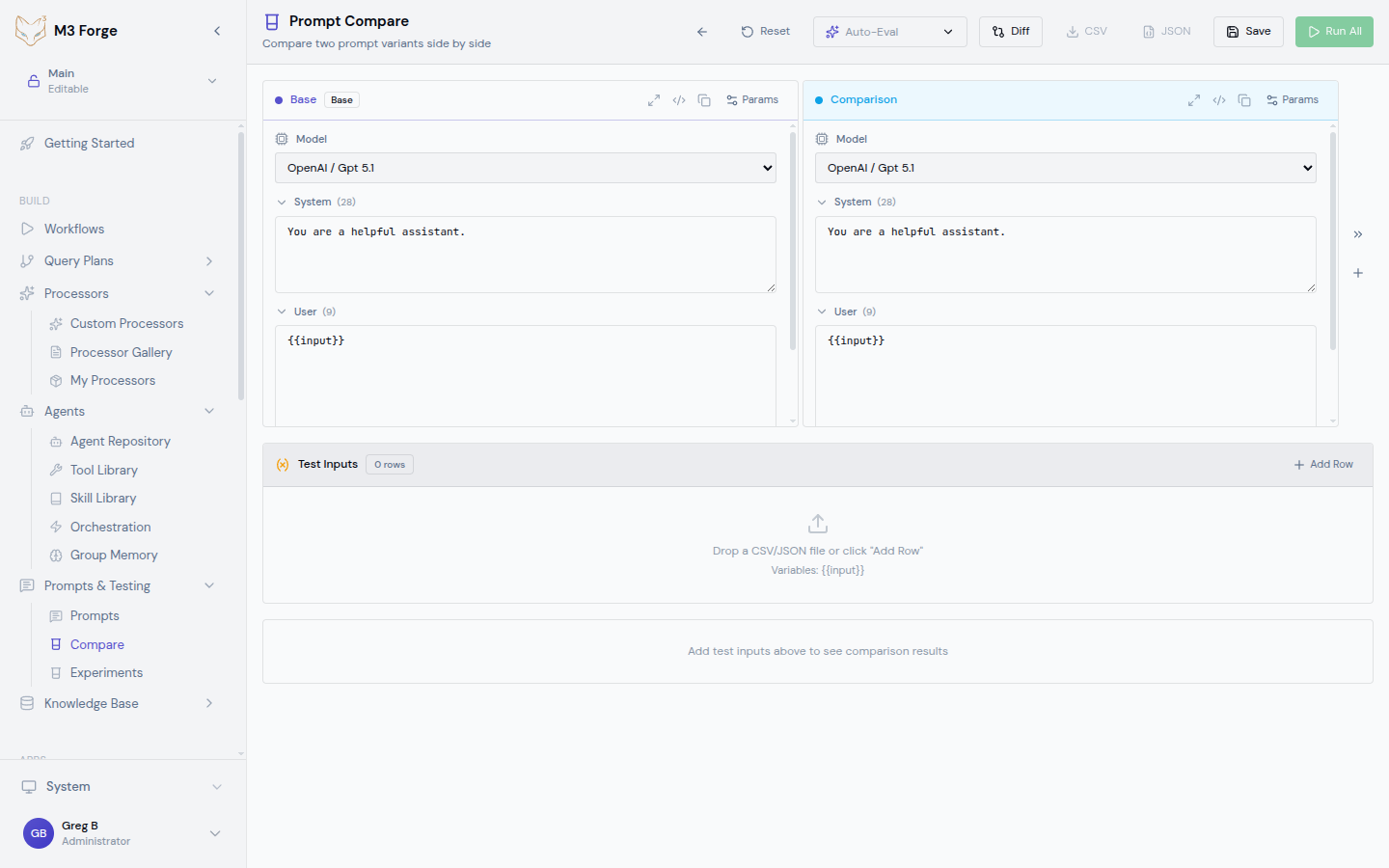
Compare prompt variants side-by-side to evaluate changes before merging branches or deploying to production. The comparison tool provides visual diffs, line-by-line highlighting, and instant copy/paste workflows.
Overview
When developing prompts across Git branches, you need to see exactly what changed and how it affects output quality. The Comparison tool displays two versions simultaneously with highlighted differences, making code review and quality assessment fast and visual.
Comparison Types
Branch Comparison
Compare the current branch against any other branch in the repository:
- Use case: Review feature branch changes before merging
- Workflow: Open a prompt, click “Compare”, select branch
- Output: Side-by-side diff with line highlighting
Example scenario:
You’re testing a new customer service prompt on the feature/empathy-boost branch. Compare it against main to see:
- Which phrases were added or removed
- How instructions changed
- Whether variable names stayed consistent
Commit History Comparison
Compare the current version against historical commits:
- Use case: See how a prompt evolved over time
- Workflow: Open commit history, select “Compare at commit”
- Output: Diff between current and selected commit
Useful for understanding why a prompt performs differently than it did last week.
Model Comparison
Test the same prompt across multiple models and compare outputs:
- Use case: Evaluate which model performs best for a given task
- Workflow: Run the same prompt in Playground with different models, compare results
- Output: Multiple response panels with identical inputs
Model comparison focuses on output quality, not prompt text differences. It answers “which model gives better results?” rather than “what changed in the prompt?”
Using the Comparison Tool
Open a Prompt
Navigate to a prompt repository and select a prompt file from the file tree.
Click Compare
Use the “Compare” button in the toolbar. A dialog appears with branch selection.
Select Comparison Branch
Choose the branch to compare against. The dropdown shows all available local branches excluding the current one.
Commonly compared pairs:
feature/xyzvs.main(before merging)mainvs.production(before deployment)experiment/abcvs.baseline(A/B test variants)
Review Differences
The comparison view displays two panels:
Left panel — Selected comparison branch (amber highlighting) Right panel — Current branch (blue highlighting)
Lines that differ are color-coded:
- Amber (left) — Content from comparison branch
- Blue (right) — Content from current branch
- No highlight — Lines are identical
Copy Content
Click the copy button in either panel header to copy the entire prompt text. Useful for:
- Pasting into external tools
- Creating new variants
- Sharing with team members
Understanding the Diff View
Line Numbers
Both panels show synchronized line numbers. Scroll one panel and the other follows, keeping comparisons aligned.
Highlighting Logic
- Changed lines — Highlighted in amber (left) or blue (right)
- Added lines — Appear in current branch (right) only, left panel shows blank
- Removed lines — Appear in comparison branch (left) only, right panel shows blank
Empty Lines
If one version is longer, the shorter version displays empty rows to maintain alignment.
Comparison Workflows
Pre-Merge Review
Before merging a feature branch:
- Compare feature branch vs. main
- Review all changes for unintended modifications
- Test both versions in Playground
- Merge if new version performs better
Rollback Analysis
If production performance degrades:
- Compare current production vs. previous commit
- Identify what changed
- Test old version in Playground
- Rollback if old version performs better
Variant Evaluation
When testing multiple prompt versions:
- Create branches for each variant (v1, v2, v3)
- Compare v1 vs. v2, v2 vs. v3
- Document differences in each version
- Run A/B tests to select winner
Use descriptive branch names like feature/add-examples or experiment/higher-temperature to make comparisons self-documenting.
Advanced Features
Multi-File Comparison
Compare entire directories of prompts:
- Navigate to a folder in the file tree
- Click “Compare All”
- View a list of all files with differences
- Drill into individual file diffs
Useful when refactoring prompt structure across multiple files.
Diff Export
Export comparison results as:
- Unified diff — Standard Git diff format for version control
- HTML report — Shareable visual comparison
- JSON — Machine-readable format for automated analysis
Inline Annotations
Add comments directly on diff lines to document why changes were made. Comments persist in Git history for future reference.
Integration with Experiments
Comparisons feed directly into A/B testing:
- Compare two branches to identify differences
- Click “Create Experiment from Comparison”
- The wizard pre-fills with both variants
- Configure traffic split and launch test
This workflow ensures experiments test exactly the differences you reviewed.
Best Practices
Compare Before Merge
Always compare feature branches against main before merging. Even small changes can significantly impact LLM behavior.
Document Changes
Add commit messages explaining why changes were made. Future comparisons benefit from this context.
Test Both Versions
Don’t rely solely on visual diff. Run both versions in Playground with identical inputs to evaluate output quality.
Use Semantic Versioning
Tag major prompt revisions with semantic versions (v1.0, v1.1, v2.0) for easy historical comparison.
Whitespace changes (extra spaces, line breaks) can appear identical visually but may affect LLM behavior. Always test after comparing.
Keyboard Shortcuts
| Action | Shortcut |
|---|---|
| Open comparison | Cmd+Shift+C |
| Switch panels | Tab |
| Copy left panel | Cmd+Shift+L |
| Copy right panel | Cmd+Shift+R |
| Close comparison | Esc |
Next Steps
- Run experiments to test compared variants with statistical rigor
- Deploy prompts to production after validation
- Use the Playground to test both versions interactively