Gateways
Gateways are the connection points between M3 Forge and Marie-AI processing backends. They serve as the foundation for infrastructure monitoring, event streaming, capacity management, and deployment operations.
Overview
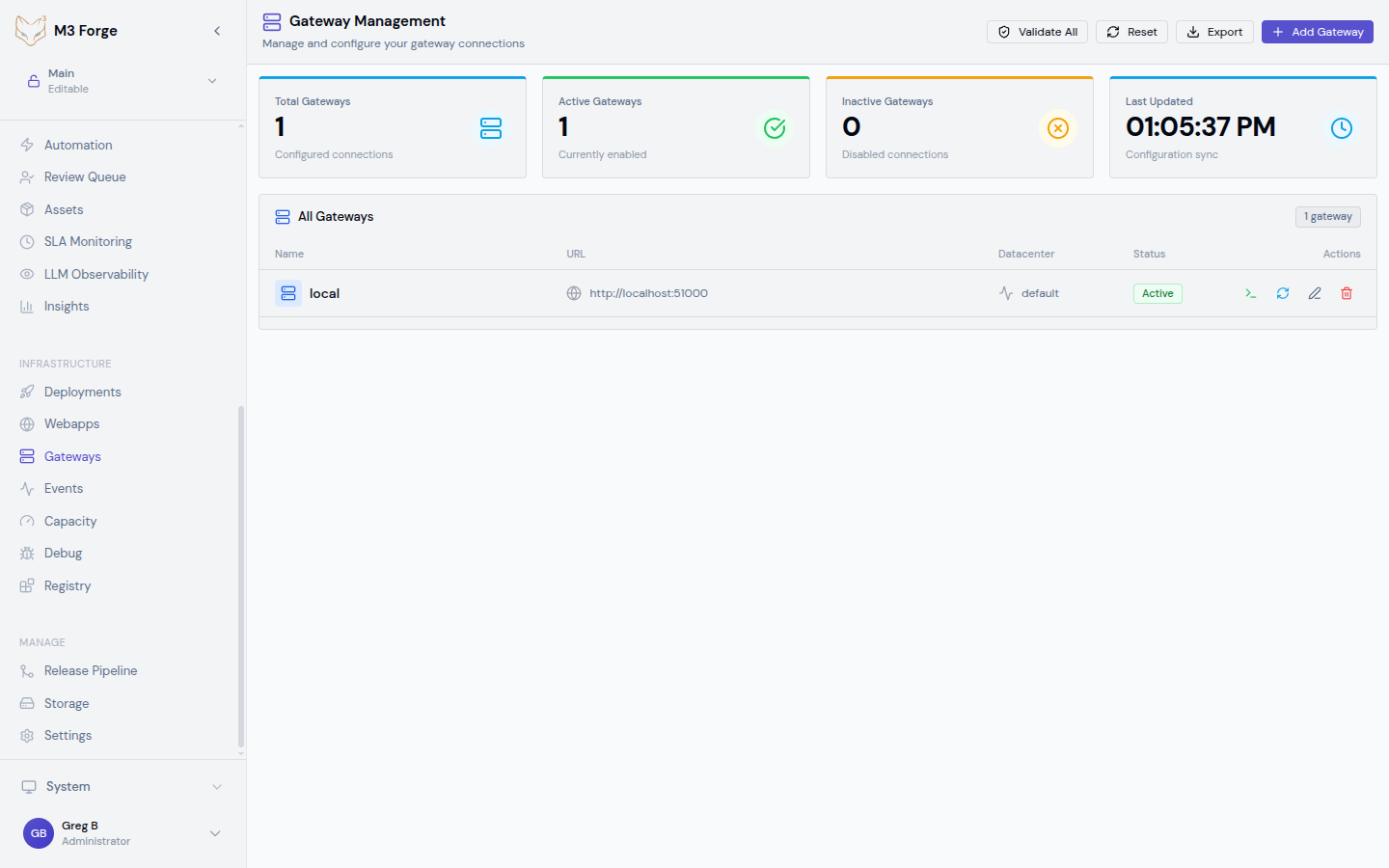
A gateway represents a Marie-AI backend instance that M3 Forge communicates with. Each gateway has:
- Name: Human-readable identifier
- URL/Endpoint: The backend service address
- Datacenter: Geographic or logical location
- Status: Real-time connection state (connected/disconnected/testing)
- Bearer Token: Authentication credential for SSE connections
Gateways enable other Infrastructure features:
- Events: Real-time event streaming from connected gateways
- Capacity: Resource monitoring across gateways
- Debug: Diagnostic tools for gateway services
- Registry: Service discovery and registration
- Deployments: Managing Marie-AI service deployments
Accessing Gateways
Navigate to Infrastructure → Gateways from the main navigation.
The gateway dashboard displays:
- Status Cards: Quick metrics showing total gateways, connected count, active connections, and last update time
- Gateway List: Table of all configured gateways with connection details
- Management Controls: Add, edit, test, and delete gateways
Adding a Gateway
Click “Add Gateway”
Opens the gateway configuration form.
Enter Gateway Details
- Name: Descriptive name for the gateway (e.g., “Production US-East”)
- URL: Full endpoint URL (validated format, e.g.,
https://api.marie.ai:8080) - Datacenter: Location identifier (e.g., “us-east-1”, “eu-central”)
- Bearer Token: Authentication token for SSE connections (optional)
The URL is validated on input. Ensure it includes the protocol (https:// or http://) and correct port if non-standard.
Save Configuration
The gateway is added to the list and immediately tested for connectivity.
Connection Testing
Test gateway connectivity to verify backend availability and authentication.
Individual Gateway Testing
Click Test next to any gateway in the list to check its connection status. The system performs:
- Health check request to the gateway endpoint
- Bearer token validation (if configured)
- Connection latency measurement
Visual feedback shows testing progress and results.
Batch Testing
Use Test All Gateways to run health checks across all configured gateways simultaneously. Useful for:
- Verifying configuration after updates
- Diagnosing network issues
- Monitoring backend availability
Managing Gateways
Editing a Gateway
- Click Edit next to the gateway
- Modify any configuration field
- Save to update and re-test the connection
Connection history is preserved when editing.
Deleting a Gateway
Click Delete and confirm removal.
Deleting a gateway removes it from all dependent features (Events, Capacity, Debug, etc.). Active connections are terminated.
Connection History
Each gateway maintains a connection log showing:
- Connection/disconnection timestamps
- Status changes
- Test results
- Error messages
Access via the history icon in the gateway row.
Bearer Token Authentication
Bearer tokens secure SSE (Server-Sent Events) connections between M3 Forge and gateways.
How It Works
- Token is configured in the gateway settings
- M3 Forge stores the token in browser
localStorage - Token is sent in the
Authorizationheader for SSE requests - Gateway validates the token before streaming events
Bearer tokens are stored in browser localStorage. Never share tokens or access M3 Forge from untrusted devices.
Setting a Token
When adding or editing a gateway, enter the bearer token provided by your Marie-AI administrator. If the field is left empty, the connection attempts without authentication (only works if the gateway allows unauthenticated access).
Token Rotation
To rotate a token:
- Edit the gateway configuration
- Replace the old token with the new one
- Save the configuration
All active SSE connections are refreshed with the new token.
Import/Export Configurations
Share gateway configurations across environments or backup settings.
Exporting
- Click Export in the gateway toolbar
- Select gateways to export (or export all)
- Download the JSON configuration file
The export includes:
- Gateway names and URLs
- Datacenter assignments
- Connection settings (tokens are not exported for security)
Importing
- Click Import
- Select a previously exported JSON file
- Review the gateways to be imported
- Confirm import
Importing does not overwrite existing gateways with the same name. You must manually delete duplicates or rename conflicting entries.
Reset to Default
Click Reset to Default to restore the default gateway configuration. This removes all custom gateways and reinstates the factory settings.
This action cannot be undone. Export your current configuration before resetting.
Integrated Terminal
The terminal panel provides direct command execution on connected gateways.
Opening the Terminal
Click the Terminal icon in the gateway toolbar to open the integrated terminal panel at the bottom of the screen.
Using the Terminal
- Select Gateway: Choose which gateway to execute commands on
- Enter Commands: Type commands as if SSH’d into the backend
- View Output: Real-time command output streams to the terminal
- Resize Panel: Drag the panel divider to adjust terminal height
Example commands:
# Check gateway version
marie --version

# View running services
marie service list

# Check system resources
marie system status
Closing the Terminal
Click the close icon or drag the panel to minimum height.
tRPC Integration
Gateways are managed via tRPC endpoints:
gateways.getConfig: Retrieve all gateway configurationsgateways.updateConfig: Save gateway configuration changes
These endpoints handle validation, storage, and real-time updates across the application.
Troubleshooting
Gateway Shows “Disconnected”
Check:
- Gateway URL is correct and accessible from your network
- Backend service is running
- Firewall rules allow traffic to the gateway port
- Bearer token is valid (if authentication is enabled)
Test:
- Click Test next to the gateway
- Review error message in the connection history
- Verify URL and token configuration
Connection Keeps Dropping
Possible causes:
- Network instability
- Backend restarts or deployments
- Load balancer timeouts
- Invalid or expired bearer token
Solutions:
- Check network connectivity
- Review gateway logs for service interruptions
- Increase SSE timeout settings (if configurable on backend)
- Rotate bearer token
”Bearer Token Invalid” Error
Solutions:
- Verify the token is correctly copied (no extra spaces)
- Confirm the token has not expired
- Check backend logs for authentication failures
- Request a new token from your administrator
Batch Test Hangs
If testing all gateways times out:
- Reduce concurrent test limit (if configurable)
- Test gateways individually to isolate problematic ones
- Check for network issues blocking some endpoints
Import Fails
Common issues:
- Invalid JSON format in import file
- Missing required fields (name, URL)
- Duplicate gateway names
Solution: Validate the JSON structure matches the export format before importing.
Best Practices
- Use descriptive names: Include environment and location (e.g., “Prod-US-West”, “Staging-EU”)
- Test regularly: Run batch tests after configuration changes or deployments
- Export configurations: Back up gateway settings before major changes
- Rotate tokens: Periodically update bearer tokens for security
- Monitor connection history: Review logs to identify recurring issues
- Limit gateways: Only configure gateways you actively use to reduce noise