Query Plans
Compose AI agent orchestration plans with reusable templates and branch-based workflows.
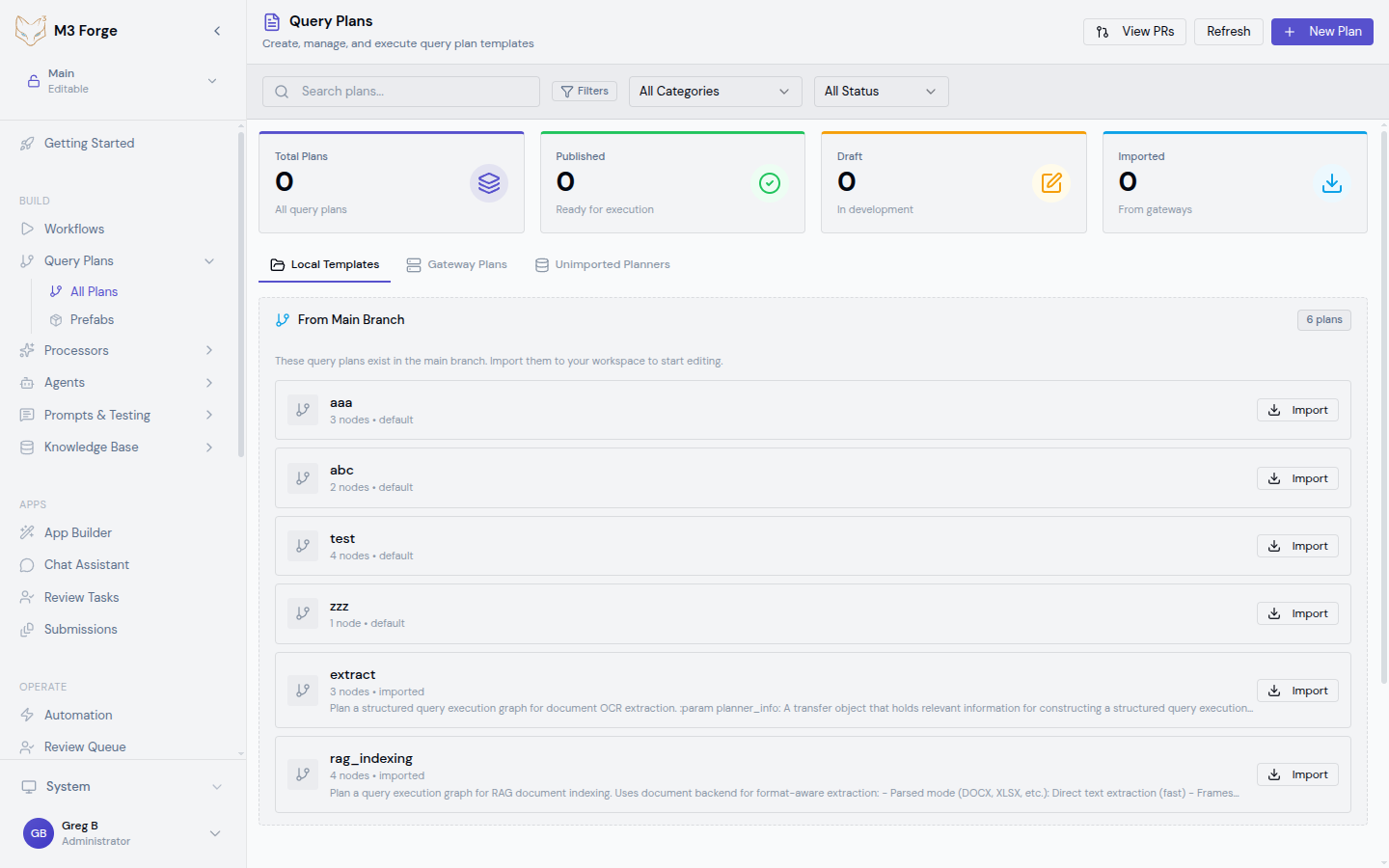
What are Query Plans?
Query Plans are specialized workflows designed for AI agent orchestration. Unlike general DAG workflows, query plans focus on:
- Agent coordination - Orchestrate multiple AI agents with different roles
- Reusable templates - Save and share common patterns as prefabs
- Branch-based execution - Track execution branches and merge points
- Canvas composition - Visual editor optimized for agent flows
Query plans are built on the same DAG execution engine as workflows but provide higher-level abstractions for multi-agent scenarios.
Key Concepts
Agents vs Nodes
In query plans, nodes represent AI agents rather than low-level operations:
- Planner Agent - Breaks down complex queries into subtasks
- Executor Agent - Performs specific operations (search, extract, transform)
- Reviewer Agent - Validates outputs and provides feedback
- Coordinator Agent - Merges results from parallel agents
Each agent node encapsulates prompts, tools, and validation logic.
Prefabs
Prefabs are reusable query plan templates stored in the prefab library. Common prefabs include:
| Prefab | Purpose | Pattern |
|---|---|---|
| Multi-Step RAG | Retrieval with reranking and synthesis | Retrieve → Rerank → Generate → Validate |
| Parallel Analysis | Run multiple analyzers concurrently | Split → [Analyzer1, Analyzer2, …] → Merge |
| Approval Loop | Human-in-the-loop validation | Process → Review → Approve/Retry |
| Iterative Refinement | Improve outputs through feedback | Generate → Evaluate → Refine → Check |
Branch Tracking
Query plans track execution branches for:
- Parallel agent execution - Multiple agents working on subtasks
- Conditional routing - Different paths based on intermediate results
- Merge points - Combining outputs from parallel branches
- Branch metadata - Timestamps, costs, token usage per branch
Creating Query Plans
Navigate to Query Plans
- Click BUILD in the sidebar
- Select Query Plans from the menu
- Click New Query Plan or browse existing plans
Choose a Starting Point
Option 1: Start from Scratch
- Blank canvas with no nodes
- Build custom agent flow from first principles
Option 2: Use a Prefab
- Click Prefabs in the toolbar
- Browse the prefab library
- Select a template matching your use case
- Customize agents and connections
Add Agent Nodes
Click nodes from the palette:
- Planner - Decomposes queries into steps
- Executor - Runs specific operations
- Reviewer - Validates and scores outputs
- Merger - Combines results from multiple agents
Configure each agent’s:
- Role - Agent identity and responsibilities
- Prompt - System and user prompts
- Tools - Functions the agent can call
- Model - LLM backend (GPT-4, Claude, etc.)
Connect Agents
Drag from output ports to input ports to define:
- Sequential dependencies - Agent B runs after Agent A completes
- Parallel execution - Multiple agents run concurrently
- Conditional routing - Route based on intermediate results
Configure Merge Logic
When multiple branches converge, configure merge behavior:
- Concatenation - Combine all outputs as array
- Voting - Select most common result
- Weighted average - Score-based combination
- Custom function - Python code for complex merging
Test with Queries
Create test queries to validate your plan:
- Click Test in the toolbar
- Enter a sample user query
- Click Run to execute the plan
- Inspect agent outputs and branch timeline
- Review total cost and token usage
Save as Prefab (Optional)
If your query plan is reusable:
- Click Save as Prefab
- Provide name and description
- Specify parameterizable fields (model, thresholds, etc.)
- Publish to prefab library
Canvas Features
Branch Visualization
The query plan canvas highlights execution branches with color coding:
- Active branch - Currently executing agents (green)
- Completed branch - Finished execution (blue)
- Failed branch - Encountered error (red)
- Pending branch - Waiting for dependencies (gray)
Agent Timeline
View chronological execution in the timeline panel:
- Start/end timestamps per agent
- Token usage and API cost per agent
- Output preview for each completed agent
- Error details for failed agents
Branch Metadata
Inspect metadata for each branch:
{
  "branch_id": "branch_1",
  "parent_branch_id": null,
  "agents": ["planner_1", "executor_1", "executor_2"],
  "status": "completed",
  "total_tokens": 2456,
  "total_cost_usd": 0.047,
  "duration_ms": 3421,
  "merge_point": "merger_1"
}
Common Patterns
Multi-Step RAG
Agent Roles:
- Retriever - Semantic search over knowledge base
- Reranker - Score and filter retrieved docs
- Generator - Synthesize response using top docs
- Validator - Check faithfulness and relevance
Parallel Analysis
Agent Roles:
- Classifier - Categorize document type
- NER Agent - Extract named entities
- Sentiment Agent - Analyze tone and sentiment
- Merger - Combine all analyses into unified output
Iterative Refinement
Agent Roles:
- Generator - Create initial response
- Reviewer - Evaluate quality with rubric
- Refiner - Incorporate feedback and regenerate
Prefab Management
Creating Prefabs
- Build and test a query plan
- Click Save as Prefab
- Define parameters:
- Name - Descriptive identifier
- Category - RAG, Analysis, Processing, etc.
- Description - Use case and expected inputs
- Parameters - Configurable fields (model, threshold, etc.)
- Click Publish
Using Prefabs
- Navigate to Query Plans → Prefabs
- Browse by category or search
- Click a prefab to preview
- Click Use Template to instantiate
- Customize parameters for your use case
Sharing Prefabs
Prefabs are stored in the M3 Forge database and available to all workspace users. To share across workspaces:
- Export prefab as JSON
- Send to other workspace admin
- Import via Prefabs → Import
Prefabs are versioned. Updates create new versions while preserving existing instantiations.
Execution and Monitoring
Running Query Plans
Query plans can be executed:
- Manually - Click Run in the editor
- Via API - tRPC endpoint
queryPlans.execute - Via triggers - Schedule or event-based (see Triggers)
Monitoring Runs
Navigate to OPERATE → Runs and filter by type: query_plan:
- Status - Pending, Running, Completed, Failed
- Duration - Total execution time
- Cost - Total API cost across all agents
- Branch count - Number of execution branches
Click a run to view detailed timeline and agent outputs.
Debugging
Use the timeline view to identify issues:
- Slow agents - High duration agents causing bottlenecks
- Failed branches - Agents with errors or timeouts
- Cost spikes - Agents consuming excessive tokens
- Validation failures - Agents producing low-quality outputs
Best Practices
- Design for reusability - Create prefabs for common patterns
- Limit parallel branches - Too many parallel agents increase cost and complexity
- Add validation gates - Use reviewer agents to catch quality issues early
- Monitor costs - Set token budgets and timeouts for expensive agents
- Test with edge cases - Validate behavior on unusual or malformed queries
- Document agent roles - Add descriptions explaining each agent’s responsibility
Query plans can spawn many parallel LLM calls. Always set token limits and timeouts to prevent runaway costs.
Example: Customer Support Query Plan
A complete query plan for handling customer support inquiries:
Classify Intent
- Agent: Intent Classifier
- Model: GPT-3.5
- Output: intent (billing, technical, feedback)
Route to Specialist
- Agent: Router
- Logic: Route based on intent classification
- Branches: billing_agent, technical_agent, feedback_agent
Process Query
- Agents: Domain-specific specialists (3 parallel)
- Tools: Knowledge base search, ticket lookup, user history
- Output: Proposed resolution
Review Response
- Agent: Quality Reviewer
- Metrics: Completeness, empathy, accuracy
- Pass threshold: 0.8
Human Approval (if needed)
- Trigger: Review score < 0.8
- Node: HITL Approval
- Action: Send to support manager
Send Response
- Agent: Response Formatter
- Output: Final customer-facing message
Related Resources
- Building Workflows - General DAG composition
- Nodes - Available node types
- Runs - Monitoring execution
- Agents - Single-agent patterns