Webapps
Manage webapp runners and deployed web applications with full lifecycle control, real-time logs, and Git integration.
What are Webapps?
Webapps provides a platform for deploying and managing web applications on top of M3 Forge infrastructure. Think of it as a self-hosted Hugging Face Spaces or Streamlit Cloud — you can deploy interactive AI demos, data science dashboards, and custom web UIs alongside your workflows.
Key features:
- Multi-framework support - Gradio, Streamlit, FastAPI, static sites, custom Docker containers
- Git integration - Deploy directly from Git repositories with branch tracking
- Lifecycle management - Start, stop, redeploy with a single click
- Real-time logs - SSE-based log streaming for each webapp
- Runner infrastructure - Dedicated webapp runners with health monitoring
- Deployment history - Track past deployments with timestamps and outcomes
Use Cases
Webapps is ideal for:
| Use Case | Example |
|---|---|
| Interactive demos | Gradio app for document extraction with upload + preview |
| Data dashboards | Streamlit dashboard for workflow analytics and cost tracking |
| Admin interfaces | Custom FastAPI + React app for user management |
| Prototyping | Quick UI for testing new AI models before workflow integration |
| Documentation sites | Static site with Nextra/Docusaurus for internal docs |
| Custom UIs | React/Vue apps that call M3 Forge tRPC endpoints |
App Types
Webapps supports multiple application frameworks:
Gradio
Python framework for ML demos with automatic UI generation.
Characteristics:
- Language: Python
- Default port: 7860
- Auto-detected from:
requirements.txtcontaininggradio+ Python files withgr.Interface - Typical startup command:
python app.py
Best for: Quick ML model demos, image/text processing UIs, chatbots
Example:
import gradio as gr

def extract_text(image):
    # Call M3 Forge extraction API
    return extracted_text

gr.Interface(fn=extract_text, inputs="image", outputs="text").launch()
Streamlit
Python framework for data science dashboards with reactive components.
Characteristics:
- Language: Python
- Default port: 8501
- Auto-detected from:
requirements.txtcontainingstreamlit+ Python files withimport streamlit - Typical startup command:
streamlit run app.py
Best for: Analytics dashboards, data exploration UIs, workflow monitoring
Example:
import streamlit as st

st.title("Workflow Analytics")
workflows = fetch_workflows()  # Call tRPC API
st.dataframe(workflows)
FastAPI
Modern Python web framework with automatic OpenAPI documentation.
Characteristics:
- Language: Python
- Default port: 8000
- Auto-detected from:
requirements.txtcontainingfastapi+main.pyorapp.py - Typical startup command:
uvicorn main:app --host 0.0.0.0 --port 8000
Best for: REST APIs, webhook receivers, custom backend services
Example:
from fastapi import FastAPI

app = FastAPI()

@app.post("/webhook")
async def handle_webhook(data: dict):
    # Process webhook and trigger workflow
    return {"status": "processed"}
Static
Plain HTML/CSS/JS sites served with nginx or simple HTTP server.
Characteristics:
- Language: HTML/CSS/JS (or pre-built frameworks like React/Vue)
- Default port: 8080
- Auto-detected from:
index.htmlat repo root with no Python/Node dependencies - Typical startup command:
python -m http.server 8080ornginx
Best for: Documentation sites, landing pages, pre-built React/Vue apps
Custom Docker
Bring your own Docker container with full control over environment.
Characteristics:
- Language: Any
- Default port: Specified in Dockerfile
EXPOSEor config - Auto-detected from:
Dockerfilepresent in repo root - Typical startup command: Defined in
DockerfileCMDorENTRYPOINT
Best for: Complex multi-service apps, non-Python/Node frameworks (Go, Rust, etc.), custom dependencies
Accessing Webapps
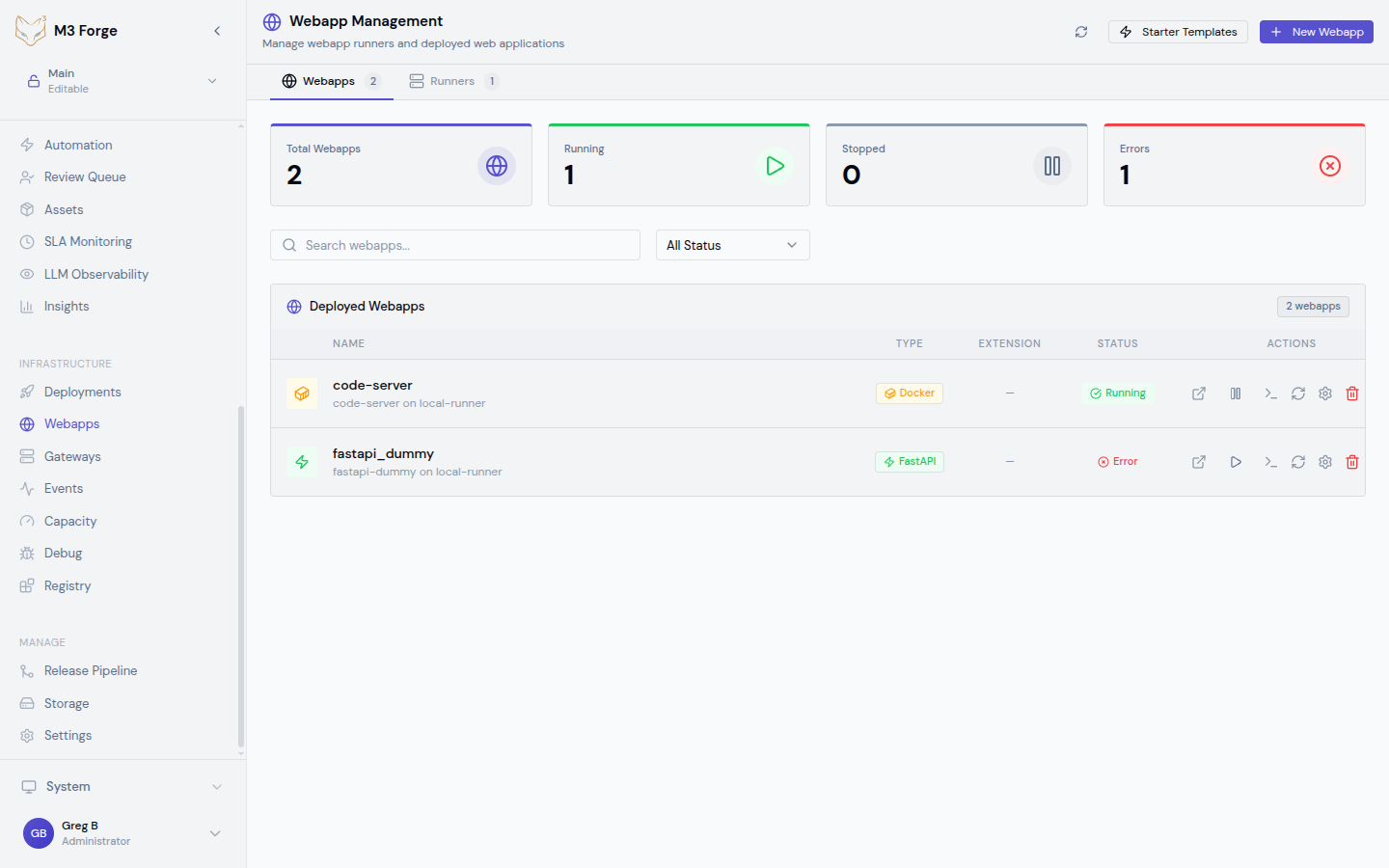
Navigate to Infrastructure > Webapps in the sidebar. The page has two main tabs:
Webapps Tab
Lists all deployed webapps with:
- Name - Webapp identifier
- Status - Running, Stopped, Error, Building
- Type - App framework (Gradio, Streamlit, etc.)
- URL - Click to open webapp in new tab
- Actions - Start, Stop, Redeploy, View Logs, Delete
Runners Tab
Lists webapp runner instances with:
- Runner ID - Unique runner identifier
- Health Status - Healthy, Unhealthy, Unknown
- Capabilities - Supported app types
- Webapp Count - Number of webapps running on this runner
- Uptime - Time since runner started
Webapps require at least one healthy runner. If no runners are available, create a runner via the API or check runner deployment status.
Creating a Webapp
Click New Webapp to open the creation form:
Basic Information
- Name - Unique identifier (alphanumeric + hyphens, max 50 chars)
- Description - Human-readable explanation of webapp purpose
Source Configuration
Choose source type:
Git Repository:
- Repository URL - HTTPS or SSH URL (e.g.,
https://github.com/user/repo.git) - Branch - Branch to deploy (default:
main) - Authentication - If private repo, provide SSH key or personal access token
File Upload:
- Upload ZIP - Archive containing webapp code
- Progress tracking - Real-time upload progress bar
App Type Selection
- Auto-detect - M3 Forge inspects
requirements.txt,package.json,Dockerfileto determine type - Manual override - Force specific app type if auto-detection incorrect
Auto-detection rules:
- If
Dockerfileexists → Custom Docker - If
requirements.txthasgradio→ Gradio - If
requirements.txthasstreamlit→ Streamlit - If
requirements.txthasfastapi→ FastAPI - If
index.htmlexists → Static - Else → Error, manual type selection required
Port Configuration
- Port - Port webapp listens on (default varies by type)
- Custom port - Override if webapp uses non-standard port
Environment Variables
Add key-value pairs for webapp environment:
API_KEY=sk_prod_abc123
DATABASE_URL=postgresql://...
DEBUG=false
Security notes:
- Environment variables stored encrypted at rest
- Masked in logs and UI (only first 4 characters shown)
- Webapp code has full access via
os.environ
Resource Limits
Set resource constraints:
- CPU - Cores (0.5, 1, 2, 4)
- Memory - GB (0.5, 1, 2, 4, 8)
- GPU - Optional, if webapp needs GPU acceleration
Click Create to start deployment. Webapp will transition through states: building → starting → running.
Webapp Lifecycle
Webapps have the following states:
Building
Initial deployment phase where M3 Forge:
- Clones Git repo or extracts uploaded ZIP
- Detects app type if auto-detect enabled
- Builds Docker container with dependencies
- Pushes container to internal registry
Typical duration: 2-5 minutes depending on dependencies
Logs show: Dependency installation, Docker build steps, push progress
Starting
Container launch phase where runner:
- Pulls built container image
- Starts container with environment variables
- Waits for health check to pass (HTTP GET to webapp port)
- Registers webapp in internal DNS
Typical duration: 30-60 seconds
Logs show: Container startup, application initialization, port binding
Running
Webapp is live and serving traffic. Users can access via URL.
Health checks: Every 30 seconds via HTTP GET to / or /health
Actions available:
- Stop - Gracefully shut down container
- Redeploy - Rebuild and restart (e.g., after Git push)
- View Logs - Open log viewer side panel
- Delete - Permanently remove webapp
Stopped
Webapp intentionally stopped, not serving traffic.
Actions available:
- Start - Resume from stopped state (no rebuild)
- Delete - Permanently remove webapp
Error
Webapp failed health checks or crashed during runtime.
Common causes:
- Application crash (check logs for stack traces)
- Port binding conflict (another webapp using same port)
- Out of memory (increase memory limit)
- Dependency installation failure (check build logs)
Actions available:
- View Logs - Diagnose error from application logs
- Redeploy - Attempt rebuild and restart
- Delete - Remove failed webapp
Log Viewing
Click View Logs for any webapp to open the log viewer side panel.
Log Features
- Real-time streaming - SSE-based log tail with auto-scroll
- Historical logs - Scroll up to view past log lines
- Timestamps - Each line prefixed with ISO timestamp
- Color coding - ERROR (red), WARN (yellow), INFO (blue), DEBUG (gray)
- Search - Filter logs by keyword
- Download - Export logs as
.txtfile
Log Retention
Logs are stored according to these policies:
| Log Type | Retention |
|---|---|
| Build logs | 30 days |
| Runtime logs | 7 days |
| Error logs | 90 days |
Logs are stored in PostgreSQL. Large log volumes (>100MB per webapp) may impact database performance. Consider log rotation or external log shipping for high-volume webapps.
Git Integration
For webapps deployed from Git repositories, M3 Forge provides Git status tracking.
Git Status Panel
View Git repository information for each webapp:
- Repository URL - Git remote origin
- Current branch - Deployed branch name
- Latest commit - Commit hash and message
- Branch status - Ahead/behind remote
- Working tree - Clean or dirty (uncommitted changes)
Branch Status
M3 Forge fetches remote branch status every 5 minutes:
Ahead of remote:
- Local commits not pushed to remote
- Indicator:
↑ 3 commits ahead
Behind remote:
- Remote has new commits not in local branch
- Indicator:
↓ 2 commits behind - Action: Click Redeploy to pull latest commits
Diverged:
- Local and remote have different commits
- Requires manual intervention (force push or reset)
Auto-Deploy on Push
Enable webhook-based auto-deploy:
- Copy webhook URL from webapp settings
- Add webhook to Git repository (GitHub/GitLab/Bitbucket)
- On push to watched branch, M3 Forge automatically redeploys webapp
Webhook payload:
{
  "event": "push",
  "branch": "main",
  "commit": "abc123...",
  "repository": "https://github.com/user/repo.git"
}
Deployment History
View past deployments for each webapp:
History Table
- Deployment ID - Unique identifier
- Timestamp - When deployment started
- Trigger - Manual, webhook, or scheduled
- Status - Success, Failed, Cancelled
- Duration - Time from start to completion
- Commit - Git commit hash (for Git-based webapps)
Deployment Details
Click any deployment to see:
- Build logs - Full build output
- Environment variables - Env vars at deployment time
- Resource usage - CPU/memory during build
- Artifacts - Built Docker image tag, size
Rollback
Revert to a previous deployment:
- Find successful deployment in history
- Click Rollback
- Webapp rebuilds from that Git commit or uploaded source
Rollback creates a new deployment — it does not modify deployment history. This ensures audit trail integrity.
Webapp Runners
Runners are the execution engines that host webapps. Each runner can host multiple webapps and provides isolation via Docker containers.
Runner Architecture
Runner Health
Runners report health every 30 seconds:
Healthy indicators:
- HTTP 200 response to health endpoint
- CPU < 80%, Memory < 80%
- Docker daemon responsive
Unhealthy indicators:
- Health check timeout (>5 seconds)
- CPU > 90% sustained
- Docker daemon unresponsive
Runner Capabilities
Each runner advertises capabilities:
- App types - Which frameworks supported (Gradio, Streamlit, etc.)
- Max webapps - Concurrent webapp limit (default: 10)
- Resources - Total CPU/memory available
- GPU support - Whether GPUs available
Webapp placement respects runner capabilities — if no runner supports requested app type, deployment fails.
Resizable Side Panel
The webapp detail panel is resizable for flexible viewing:
- Drag handle - Click and drag edge to resize
- Keyboard shortcuts:
Ctrl+[- Decrease widthCtrl+]- Increase widthEscape- Close panel
File Upload
When creating webapp via file upload:
Upload Process
Prepare Archive
Create ZIP containing webapp code:
zip -r webapp.zip app.py requirements.txt static/ templates/Ensure root of ZIP has entry point file (app.py, main.py, index.html, etc.)
Upload
Drag and drop ZIP onto upload area or click to browse.
Progress tracking:
- Upload progress bar
- Estimated time remaining
- Upload speed (MB/s)
Extract and Build
M3 Forge extracts ZIP and starts build process identical to Git deployment.
Maximum upload size: 100MB. For larger webapps, use Git deployment instead.
Monaco Editor
For viewing webapp configuration and code, M3 Forge includes Monaco Editor (VS Code’s editor engine).
Features
- Syntax highlighting - Python, JavaScript, HTML, YAML, JSON
- Code folding - Collapse/expand code blocks
- Search and replace - Find across files
- Read-only mode - View code without editing (editing via Git)
Use Cases
- View
requirements.txt- Inspect dependencies before deployment - Check
Dockerfile- Understand custom Docker build steps - Review environment config - Verify env vars before webapp start
Troubleshooting
Webapp Stuck in Building
Cause: Dependency installation timeout or build error.
Solution:
- View build logs for error messages
- Check
requirements.txtorpackage.jsonfor invalid dependencies - Increase build timeout in runner config
- Retry build after fixing dependency issues
Webapp Crashes on Startup
Cause: Application code error or missing environment variable.
Solution:
- View runtime logs for stack trace
- Verify all required environment variables set
- Test webapp locally before deploying
- Increase memory limit if out-of-memory error
Cannot Access Webapp URL
Cause: Port conflict, firewall, or DNS issue.
Solution:
- Check webapp status is Running (not Stopped or Error)
- Verify port in webapp config matches application listening port
- Test runner health in Runners tab
- Check network policies allow traffic to runner
Git Webhook Not Triggering
Cause: Webhook URL incorrect or authentication failure.
Solution:
- Copy webhook URL from webapp settings (includes auth token)
- Verify webhook added to Git repository settings
- Check webhook delivery logs in GitHub/GitLab
- Test webhook manually:
curl -X POST <webhook_url> -d '{"event":"push"}'
Runner Shows Unhealthy
Cause: Resource exhaustion or Docker daemon failure.
Solution:
- Check runner resource usage (CPU/memory)
- Restart Docker daemon on runner host
- Reduce number of webapps on runner
- Scale up runner resources or add additional runner
Best Practices
Webapp Naming
Use descriptive, hierarchical names:
<team>-<purpose>-<env>Examples:
ml-team-demo-gradio-prodanalytics-dashboard-stagingdocs-site-prod
This enables:
- Clear ownership and purpose from name
- Easy filtering and search
- Automated resource tagging
Resource Allocation
Set appropriate resource limits:
| App Type | CPU | Memory | GPU |
|---|---|---|---|
| Gradio | 1 core | 1-2 GB | Optional (for ML inference) |
| Streamlit | 0.5 core | 512 MB - 1 GB | No |
| FastAPI | 1 core | 512 MB | No |
| Static | 0.25 core | 128 MB | No |
| Custom | Varies | Varies | Varies |
Overprovisioning wastes resources; underprovisioning causes crashes.
Environment Variables
Store secrets securely:
- Use secret management - Reference secrets from Vault/AWS Secrets Manager, don’t hardcode
- Least privilege - Only grant webapp access to secrets it needs
- Rotate regularly - Update API keys quarterly
- Audit access - Log when webapp reads sensitive env vars
Git Workflow
For production webapps:
- Use protected branches - Require PR approval before merging to
main - Tag releases - Use Git tags for version tracking
- Test before merge - Deploy to staging webapp first
- Enable auto-deploy - Webhook from
mainbranch for continuous deployment
Monitoring
Track webapp health:
- Set up alerts - Slack/email notification when webapp enters Error state
- Monitor logs - Review error logs weekly for patterns
- Track uptime - Use external uptime monitoring (Pingdom, UptimeRobot)
- Cost tracking - Monitor runner resource usage and webapp count
Next Steps
- Configure webapp runners for deployment infrastructure
- View real-time logs for all webapps
- Track events for webapp lifecycle changes
- Monitor capacity to ensure sufficient runner resources