Triggers
Configure all seven trigger types to automate workflow execution based on schedules, events, webhooks, and data sources.
Trigger Configuration
All triggers share common fields:
{
  "name": "Human-readable identifier",
  "description": "Optional description of trigger purpose",
  "type": "schedule|webhook|polling|event|run_status|data_sink|manual",
  "status": "active|inactive|paused",
  "config": {
    // Type-specific configuration
  },
  "target_workflow_id": "workflow-to-execute"
}
Type-specific config is detailed below for each trigger type.
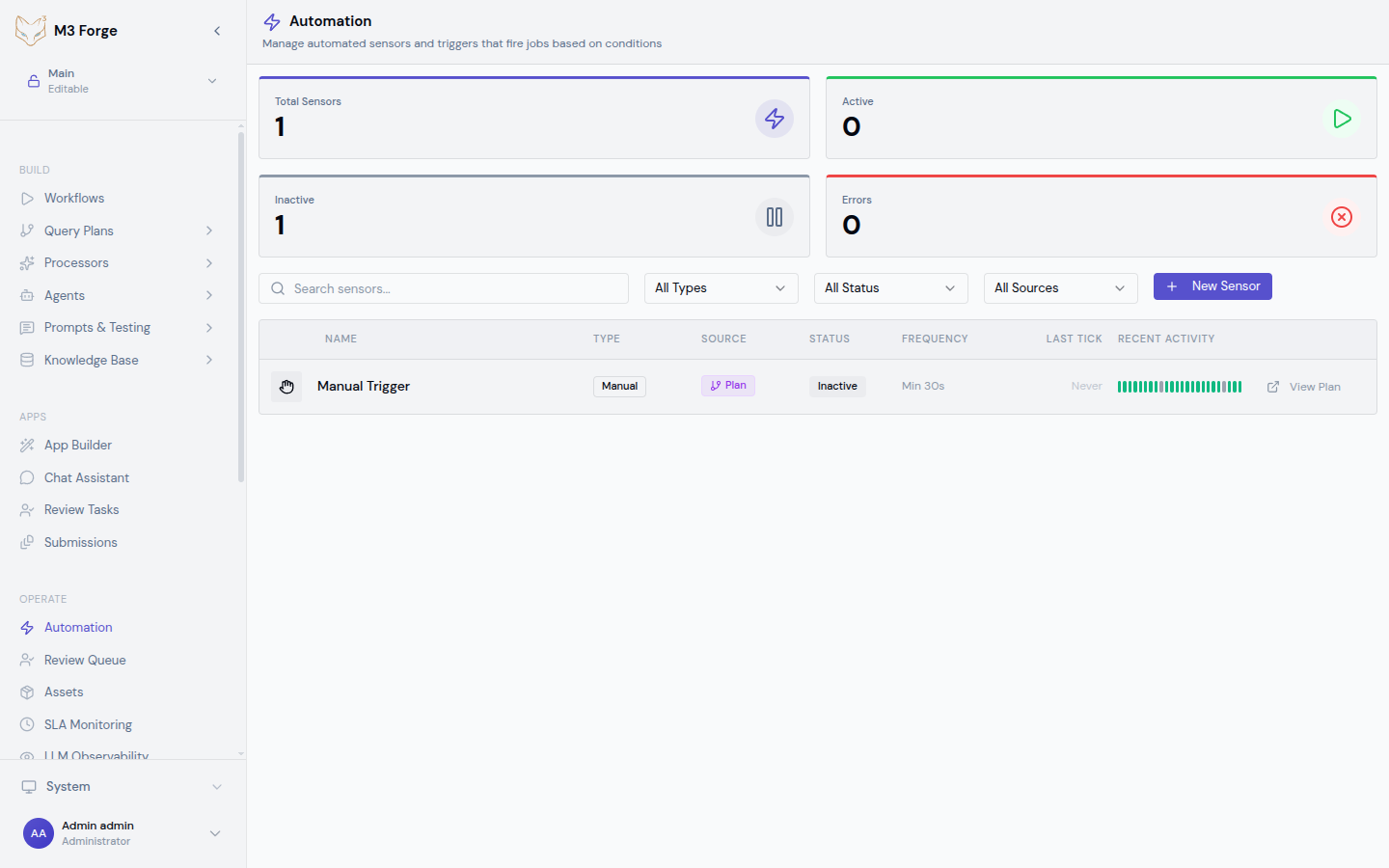
Manual Triggers
No automatic execution. Workflows run only when explicitly invoked.
Configuration
{
  "type": "manual",
  "config": {}
}
No additional configuration needed.
Execution
Via UI:
- Navigate to workflow detail page
- Click “Run Workflow” button
- Optionally provide input payload
- Click “Execute”
Via API:
curl -X POST https://your-instance/api/workflows/{workflow_id}/run \
  -H "Authorization: Bearer YOUR_TOKEN" \
  -H "Content-Type: application/json" \
  -d '{"input": {"key": "value"}}'
Use cases:
- Ad-hoc processing (manual document upload)
- Testing and debugging workflows
- Interactive applications (user clicks button)
Manual triggers are the default for new workflows. Add automatic triggers when ready for production automation.
Schedule Triggers
Execute workflows on time-based schedules using cron expressions.
Configuration
{
  "type": "schedule",
  "config": {
    "cron": "0 9 * * 1-5",
    "timezone": "America/New_York",
    "skip_if_running": true
  }
}
Fields:
- cron - Cron expression defining schedule (required)
- timezone - IANA timezone (default: UTC)
- skip_if_running - Skip execution if previous run still active (default: true)
Cron Expression Syntax
Format: minute hour day month weekday
| Field | Values | Special Characters |
|---|---|---|
| Minute | 0-59 | * , - / |
| Hour | 0-23 | * , - / |
| Day of Month | 1-31 | * , - / ? |
| Month | 1-12 | * , - / |
| Day of Week | 0-6 (Sun-Sat) | * , - / ? |
Special characters:
*- Any value,- List separator (e.g.,1,3,5)-- Range (e.g.,1-5)/- Step (e.g.,*/15= every 15 units)?- No specific value (day or weekday)
Common Patterns
Hourly
# Every hour at minute 0
0 * * * *

# Every 15 minutes
*/15 * * * *

# Every hour at minute 30
30 * * * *

# Every 6 hours
0 */6 * * *Timezone Handling
Schedules execute in the configured timezone:
{
  "cron": "0 9 * * *",
  "timezone": "America/New_York"
}
This schedule runs at 9 AM Eastern Time, adjusting for daylight saving time automatically.
Best practices:
- Always specify timezone explicitly (avoid UTC unless intentional)
- Use IANA timezone names (not abbreviations like EST/PST)
- Test schedules around DST transitions (spring forward, fall back)
See Scheduling for detailed timezone handling.
Webhook Triggers
Generate unique HTTP endpoints that trigger workflows on POST requests.
Configuration
{
  "type": "webhook",
  "config": {
    "auth_type": "bearer_token",
    "secret": "auto-generated-or-custom",
    "allowed_ips": ["203.0.113.0/24"],
    "require_https": true
  }
}
Fields:
- auth_type -
none,bearer_token,hmac_sha256 - secret - Authentication secret (auto-generated if omitted)
- allowed_ips - CIDR ranges (optional IP allowlist)
- require_https - Reject HTTP requests (default: true)
Webhook URL
Each webhook trigger receives a unique URL:
https://your-instance/api/webhooks/wh_abc123xyzThe webhook ID (wh_abc123xyz) is visible in the trigger detail view.
Authentication
Bearer Token:
curl -X POST https://your-instance/api/webhooks/wh_abc123 \
  -H "Authorization: Bearer YOUR_SECRET" \
  -H "Content-Type: application/json" \
  -d '{"key": "value"}'
HMAC Signature:
# Compute signature
SIGNATURE=$(echo -n "$PAYLOAD" | openssl dgst -sha256 -hmac "$SECRET" | awk '{print $2}')

# Send request
curl -X POST https://your-instance/api/webhooks/wh_abc123 \
  -H "X-Webhook-Signature: sha256=$SIGNATURE" \
  -H "Content-Type: application/json" \
  -d "$PAYLOAD"
HMAC prevents payload tampering and replay attacks.
Payload Format
Webhook body becomes workflow input:
Request:
{
  "user_id": 123,
  "action": "document_uploaded",
  "document_url": "https://example.com/doc.pdf"
}
Workflow receives:
{
  "data": {
    "user_id": 123,
    "action": "document_uploaded",
    "document_url": "https://example.com/doc.pdf"
  },
  "metadata": {
    "trigger_type": "webhook",
    "webhook_id": "wh_abc123",
    "source_ip": "203.0.113.42",
    "timestamp": "2024-03-19T10:30:00Z"
  }
}
Access payload fields in nodes via JSONPath: $.data.user_id
See Webhooks for detailed examples.
Polling Triggers
Periodically check external APIs or endpoints and trigger on changes.
Configuration
{
  "type": "polling",
  "config": {
    "url": "https://api.example.com/tasks",
    "http_method": "GET",
    "headers": {
      "Authorization": "Bearer API_TOKEN"
    },
    "interval_seconds": 300,
    "response_hash_field": "last_modified",
    "trigger_on_new": true
  }
}
Fields:
- url - Endpoint to poll (required)
- http_method - GET, POST (default: GET)
- headers - Custom HTTP headers (auth, etc.)
- interval_seconds - Polling frequency (minimum: 30)
- response_hash_field - JSON field to track changes (optional)
- trigger_on_new - Trigger if field value changes (default: true)
Change Detection
Sensor tracks response hash to detect changes:
Initial poll:
{
  "tasks": [
    {"id": 1, "status": "pending"}
  ],
  "last_modified": "2024-03-19T10:00:00Z"
}
Sensor stores last_modified value.
Subsequent poll:
{
  "tasks": [
    {"id": 1, "status": "completed"},
    {"id": 2, "status": "pending"}
  ],
  "last_modified": "2024-03-19T10:30:00Z"
}
last_modified changed → Workflow triggered with new response as input.
Use cases:
- Monitor API for new records
- Check external job status
- Poll RSS/Atom feeds for new content
- Detect file changes via ETag headers
Event Triggers
Subscribe to internal event streams (database, queues, pub/sub).
Configuration
{
  "type": "event",
  "config": {
    "event_type": "document.uploaded",
    "source": "rabbitmq",
    "queue": "document-events",
    "filter": {
      "tenant_id": "customer-123"
    },
    "batch_size": 10
  }
}
Fields:
- event_type - Event identifier (e.g.,
document.uploaded) - source - Event backend (
rabbitmq,redis,postgres,kafka) - queue - Queue/topic/channel name
- filter - JSON filter on event payload
- batch_size - Process multiple events per trigger (default: 1)
Event Payload
Events include type, payload, and metadata:
{
  "event_type": "document.uploaded",
  "payload": {
    "document_id": "doc123",
    "filename": "contract.pdf",
    "tenant_id": "customer-123"
  },
  "metadata": {
    "timestamp": "2024-03-19T10:30:00Z",
    "source": "upload-service"
  }
}
Workflow receives payload as input: $.data.document_id
Supported Event Sources
| Source | Configuration | Use Case |
|---|---|---|
| RabbitMQ | queue, exchange, routing_key | Job queues, work distribution |
| Redis Pub/Sub | channel, pattern | Real-time notifications |
| PostgreSQL NOTIFY | channel | Database triggers |
| Kafka | topic, consumer_group | Event streaming |
Example: PostgreSQL trigger
CREATE OR REPLACE FUNCTION notify_document_upload()
RETURNS TRIGGER AS $$
BEGIN
  PERFORM pg_notify('document-events', json_build_object(
    'event_type', 'document.uploaded',
    'payload', row_to_json(NEW)
  )::text);
  RETURN NEW;
END;
$$ LANGUAGE plpgsql;

CREATE TRIGGER document_upload_trigger
AFTER INSERT ON documents
FOR EACH ROW EXECUTE FUNCTION notify_document_upload();
M3 Forge listens on document-events channel and triggers workflows.
Run Status Triggers
Execute workflows based on other workflow completion.
Configuration
{
  "type": "run_status",
  "config": {
    "watched_workflow_id": "data-extraction",
    "statuses": ["completed"],
    "propagate_failure": true,
    "pass_output": true
  }
}
Fields:
- watched_workflow_id - Workflow to monitor (required)
- statuses - Trigger on these statuses:
completed,failed,terminated - propagate_failure - If watched workflow fails, mark this run as failed (default: false)
- pass_output - Pass watched workflow output as input (default: false)
Workflow Chaining
Chain multiple workflows into pipelines:
Extract Pipeline (manual trigger):
- User uploads document
- Extracts text, tables, metadata
Validation Pipeline (run_status trigger):
- Watches Extract Pipeline
- Triggers on
completedstatus - Validates extracted data
Archive Pipeline (run_status trigger):
- Watches Validation Pipeline
- Triggers on
completedstatus - Archives validated results
Output Propagation
With pass_output: true, downstream workflow receives upstream output:
Extract Pipeline output:
{
  "text": "Extracted content...",
  "tables": [...],
  "metadata": {...}
}
Validation Pipeline receives:
{
  "data": {
    "text": "Extracted content...",
    "tables": [...],
    "metadata": {...}
  },
  "source_run_id": "run_abc123",
  "source_workflow_id": "data-extraction"
}
Access upstream output via $.data.* in nodes.
Use cases:
- Multi-stage ETL pipelines
- Conditional branching (different workflows for success/failure)
- QA workflows (run tests after deployment)
- Cleanup workflows (delete temp files after processing)
Data Sink Triggers
Monitor cloud storage or queues for new data.
Configuration
{
  "type": "data_sink",
  "config": {
    "sink_type": "s3",
    "bucket": "incoming-documents",
    "prefix": "uploads/",
    "poll_interval_seconds": 60,
    "process_existing": false,
    "delete_after_processing": false
  }
}
Fields:
- sink_type -
s3,azure_blob,gcs,rabbitmq,redis_list - bucket (cloud storage) - Bucket/container name
- prefix (cloud storage) - Path prefix to monitor
- poll_interval_seconds - Polling frequency (default: 60)
- process_existing - Process files present at sensor creation (default: false)
- delete_after_processing - Delete file after successful processing (default: false)
S3 Configuration
{
  "sink_type": "s3",
  "bucket": "my-bucket",
  "prefix": "uploads/",
  "region": "us-east-1",
  "access_key_id": "ACCESS_KEY",
  "secret_access_key": "SECRET_KEY"
}
Credential management:
Use environment variables instead of hardcoding secrets:
{
  "sink_type": "s3",
  "bucket": "my-bucket",
  "credentials_from_env": true
}
Set AWS_ACCESS_KEY_ID and AWS_SECRET_ACCESS_KEY in deployment environment.
Processing Behavior
Sensor maintains cursor to track processed files:
- Sensor lists files in bucket/prefix
- Filters files newer than cursor
- Triggers workflow for each new file
- Updates cursor to latest file timestamp
Workflow input:
{
  "data": {
    "file_url": "s3://my-bucket/uploads/document.pdf",
    "filename": "document.pdf",
    "size_bytes": 1048576,
    "last_modified": "2024-03-19T10:30:00Z",
    "metadata": {
      "bucket": "my-bucket",
      "key": "uploads/document.pdf"
    }
  }
}
Use $.data.file_url in nodes to download and process the file.
RabbitMQ Queue
{
  "sink_type": "rabbitmq",
  "queue": "document-processing",
  "host": "rabbitmq.example.com",
  "port": 5672,
  "username": "user",
  "password": "pass",
  "prefetch_count": 10
}
Sensor consumes messages from queue and triggers workflow per message.
Use cases:
- Process documents as they arrive in S3
- Trigger on file uploads to Azure Blob Storage
- Consume work from RabbitMQ queues
- Monitor GCS buckets for new files
Managing Triggers
Enable/Disable
Toggle sensor status to control execution:
- Enable → Sensor starts evaluating on schedule
- Disable → Sensor stops (cursor preserved)
- Pause → Temporary disable (preserves state)
Via UI:
- Navigate to Automation page
- Find sensor in list
- Toggle switch in status column
Via API:
await trpc.triggers.activate.mutate({ id: 'trigger_abc123' });
await trpc.triggers.pause.mutate({ id: 'trigger_abc123' });
await trpc.triggers.deactivate.mutate({ id: 'trigger_abc123' });
Edit Configuration
Global sensors:
- Click sensor name in Automation page
- Edit configuration in detail panel
- Save changes
- Changes apply to next tick
Plan-embedded triggers:
- Open workflow in canvas editor
- Select START node
- Edit trigger config in properties panel
- Save workflow
Delete Triggers
Global sensors:
- Delete via UI (Automation page)
- Deletion is immediate and irreversible
- Execution history is preserved
Plan-embedded triggers:
- Deleted automatically when workflow is deleted
- Cannot delete independently
Deleting a sensor does not cancel in-flight workflow runs. Runs triggered before deletion will complete normally.
Monitoring and Debugging
Tick Timeline
Visualize sensor evaluation history:
- Green bars → Successful ticks (workflow triggered)
- Gray bars → Skipped ticks (no condition met)
- Red bars → Failed ticks (error during evaluation)
Click any bar to view:
- Tick timestamp
- Cursor value
- Error message (if failed)
- Triggered run ID (if successful)
Error Handling
Common failure modes:
| Error | Cause | Solution |
|---|---|---|
| Connection timeout | External API unreachable | Check endpoint URL, network connectivity |
| Authentication failed | Invalid credentials | Verify auth tokens, refresh if expired |
| Invalid response | API response changed format | Update response_hash_field, review API docs |
| Rate limit exceeded | Too many requests | Increase interval_seconds |
| Workflow not found | Target workflow deleted | Update target_workflow_id |
Enable failure alerts to get notified when sensors enter error state.
Testing Triggers
Manual test:
- Click “Test Trigger” in sensor detail view
- Sensor evaluates immediately (ignores interval)
- View tick result and triggered run (if any)
Dry run mode:
{
  "dry_run": true
}
Sensor evaluates but does not trigger workflows. Use to test condition logic without side effects.
Best Practices
Configuration
- Descriptive names - Clearly identify sensor purpose
- Minimum intervals - Don’t poll more frequently than needed (respect rate limits)
- Idempotency - Ensure workflows handle duplicate triggers gracefully
- Secrets management - Use environment variables, not config JSON
Performance
- Batch processing - Use
batch_sizefor event triggers - Cursor checkpointing - Update cursor only after successful processing
- Error budgets - Configure
max_failuresto pause runaway sensors
Security
- Authentication - Always use bearer tokens or HMAC for webhooks
- IP allowlisting - Restrict webhook sources to known IPs
- HTTPS only - Reject unencrypted requests
- Least privilege - Grant minimal permissions to API tokens
Next Steps
- Set up webhook endpoints for external integrations
- Master scheduling patterns for recurring tasks
- Monitor trigger health in the Automation dashboard
- Build workflow chains with run status triggers