Deployments
Monitor executor deployments across gateways with real-time health status, capacity tracking, and deep executor inspection.
What are Deployments?
Deployments tracks all executor instances running on Marie-AI backend gateways. Executors are the runtime engines that process workflows, run document extraction pipelines, and execute AI operations. The Deployments view provides comprehensive visibility into:
- Executor status - SERVING, STOPPED, ERROR, or transitioning states
- Node counts - How many nodes each executor is running on
- Heartbeat monitoring - Last health check timestamps from each executor
- Capacity metrics - Total, used, and available slots for job scheduling
- Desired states - Expected executor configuration per epoch
- Multi-gateway support - Monitor deployments across multiple geographic regions
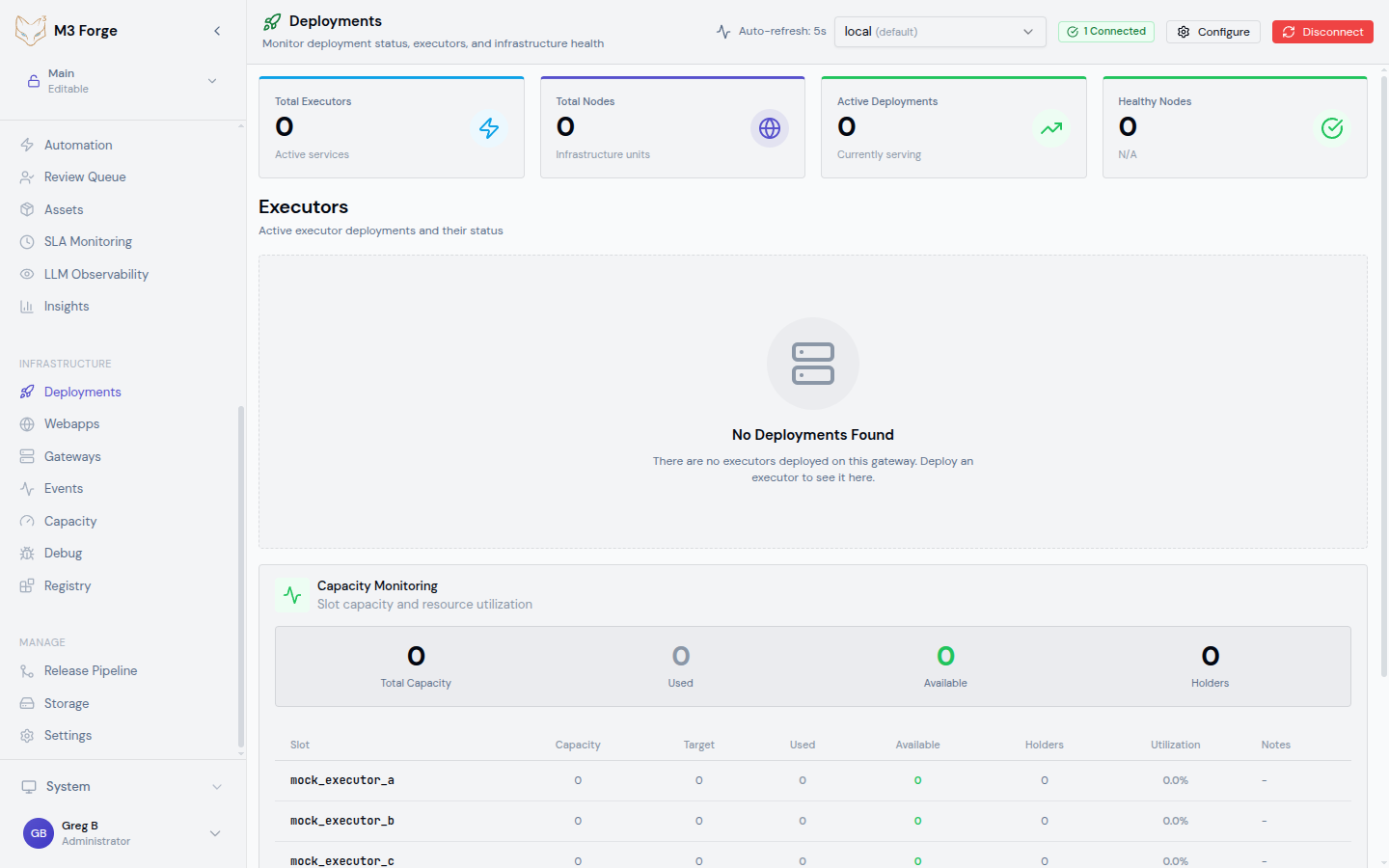
Accessing Deployments
Navigate to Infrastructure > Deployments in the sidebar. The Deployments view requires:
- Gateway configured - At least one gateway defined in
gateways.jsonor environment config - Bearer token -
GATEWAY_TOKEN_<GATEWAY_ID>environment variable set for authentication - Gateway healthy - Health check passes before data fetch
If you see a “Gateway not configured” warning, check your gateway configuration. See Gateways for setup instructions.
Overview Metrics
The top of the Deployments view displays four key metrics:
Total Executors
Count of all executor deployments across the selected gateway, regardless of status. Includes SERVING, STOPPED, ERROR, and transitioning executors.
Use case: Understand total deployment scale across your infrastructure.
Total Nodes
Sum of all nodes across all executors. Each executor can run on multiple nodes for horizontal scaling.
Use case: Track infrastructure footprint and node utilization.
Active Deployments
Count of executors currently in SERVING status and accepting workflow execution requests.
Use case: Monitor how many executors are ready for production traffic.
Healthy Nodes
Percentage of nodes across all executors that have sent heartbeats within the expected interval (typically 30 seconds). Calculated as:
Healthy % = (Nodes with recent heartbeat / Total nodes) × 100Use case: Detect node failures or network partitions affecting executor health.
Low healthy node percentage indicates infrastructure issues. Check gateway connectivity and executor logs for node failures.
Executors Table
The main table lists all executors with the following columns:
Name
Executor identifier, typically formatted as <function>-executor-<id>. Examples:
extract-executor-001- Document extraction executorclassify-executor-002- Classification pipeline executorembedding-executor-003- Vector embedding generation executor
Click the executor name to open the detail flyout panel.
Status
Current executor state with color-coded indicator:
| Status | Color | Meaning |
|---|---|---|
| SERVING | Green | Healthy and accepting requests |
| STOPPED | Gray | Intentionally stopped, not accepting requests |
| ERROR | Red | Failed health checks or runtime errors |
| STARTING | Yellow | Transitioning from STOPPED to SERVING |
| STOPPING | Yellow | Transitioning from SERVING to STOPPED |
Node Count
Number of nodes this executor is deployed on. Higher node counts provide:
- Horizontal scaling - More capacity for parallel job execution
- High availability - Redundancy if individual nodes fail
- Geographic distribution - Nodes spread across availability zones
Owner
User or team that deployed this executor. Used for access control and cost allocation.
Epoch
Configuration version for this executor deployment. Increments when executor configuration changes (node count, resource limits, feature flags).
Use case: Track executor updates and correlate performance changes with configuration epochs.
Last Updated
Timestamp when executor configuration was last modified. Distinct from heartbeat — this tracks configuration changes, not health checks.
Heartbeat
Most recent heartbeat timestamp from the executor. Heartbeats are sent every 30 seconds by healthy executors.
Warning signs:
- Heartbeat older than 1 minute - Potential network or executor issue
- Missing heartbeat - Executor crashed or network partition
Endpoints
List of API endpoints this executor exposes. Click to expand and see:
- REST endpoints -
/extract,/classify,/embed, etc. - gRPC services - For high-performance binary communication
- Health check endpoints -
/health,/ready
Capacity Monitoring
The Capacity card displays resource utilization across all executors:
Total Capacity
Maximum number of concurrent jobs this gateway can handle. Calculated as:
Total Capacity = Sum of (executor.node_count × executor.slots_per_node)Used Capacity
Currently occupied slots across all executors. Includes running jobs and reserved slots.
Available Capacity
Free slots ready for new job assignments:
Available = Total - UsedUtilization Percentage
Utilization % = (Used / Total) × 100Scaling guidelines:
- < 50% - Comfortably under-utilized, no action needed
- 50-70% - Normal operating range for production
- 70-85% - Consider scaling up if sustained
- > 85% - Critical - jobs may queue, immediate scaling recommended
Capacity Holders Table
Drill-down table showing per-executor capacity:
| Column | Description |
|---|---|
| Executor | Executor name |
| Total Slots | Maximum concurrent jobs this executor supports |
| Used Slots | Currently occupied slots |
| Available Slots | Free slots |
| Utilization % | Used / Total |
Use case: Identify which executors are bottlenecks and need additional nodes.
Capacity is refreshed every 30 seconds. For real-time capacity during scaling events, manually refresh the page.
Desired States
The Desired States card shows expected executor configurations grouped by executor name. Each entry displays:
- Executor name - Target executor identifier
- Phase - Configuration lifecycle phase (PENDING, ACTIVE, DEPRECATED)
- Epoch - Configuration version number
- Created - When this desired state was defined
- Updated - Last modification to desired state
Reconciliation
M3 Forge compares actual executor status against desired states to detect configuration drift:
- Match - Actual status matches desired state, no action needed
- Drift - Actual differs from desired, reconciliation in progress
- Unknown - Executor exists but has no desired state definition
Use case: Audit executor deployments to ensure they match intended configuration.
Executor Detail Flyout
Click any executor name to open a side panel with comprehensive details:
Navigation
Use keyboard shortcuts for efficient browsing:
- Arrow Up - Previous executor in list
- Arrow Down - Next executor in list
- Escape - Close flyout
Overview Section
- Executor ID - Unique identifier
- Status - Current state with last updated timestamp
- Owner - Deploying user/team
- Epoch - Configuration version
- Created - Initial deployment timestamp
Nodes Section
Table of all nodes running this executor:
| Column | Description |
|---|---|
| Node ID | Kubernetes pod name or VM identifier |
| Status | HEALTHY, UNHEALTHY, UNKNOWN |
| Heartbeat | Last health check timestamp |
| Uptime - Time since node started | |
| Resources | CPU/memory allocation |
Capacity Section
Node-level capacity breakdown:
- Total capacity per node - Max slots each node provides
- Used capacity per node - Current slot utilization
- Slot utilization chart - Visual bar chart of usage
Endpoints Section
Full list of API endpoints with:
- Path - Endpoint URL path
- Method - HTTP method (GET, POST, etc.)
- Description - What this endpoint does
- Schema - Request/response schemas (click to expand)
Configuration Section
Current executor configuration:
- Resource limits - CPU, memory, GPU allocation
- Feature flags - Enabled experimental features
- Environment variables - Non-secret config values
- Timeout settings - Job execution and health check timeouts
Secrets and sensitive configuration values are masked in the UI. Use gateway CLI tools to inspect full configuration.
Multi-Gateway Support
The gateway selector at the top of the page allows switching between configured gateways. When switching:
- Health check runs - New gateway tested before data fetch
- Executors re-fetched - Data loaded from selected gateway
- URL updates -
?gateway=<id>parameter added to URL for bookmarking
Health Testing
Before fetching deployment data, M3 Forge:
- Sends GET request to gateway health endpoint
- Checks response status (200 OK expected)
- Validates response includes expected health fields
- Caches health status for 5 seconds
If health check fails:
- Warning displayed: “Gateway unhealthy, data may be stale”
- Last successful data remains visible
- Retry option shown to re-test health
URL Deep Linking
Share direct links to specific executors or gateways:
/infrastructure/deployments?executor=extract-executor-001&gateway=us-east-1This URL will:
- Switch to
us-east-1gateway - Scroll to
extract-executor-001in table - Open executor detail flyout automatically
Use case: Share deployment status in Slack/tickets for collaboration.
Auto-Refresh
Deployments view auto-refreshes data at the following intervals:
| Data Type | Refresh Interval |
|---|---|
| Gateway health | 5 seconds |
| Executor status | 10 seconds |
| Capacity metrics | 30 seconds |
| Desired states | 60 seconds |
Auto-refresh pauses when:
- Browser tab not visible
- Executor detail flyout open (prevents jarring updates mid-inspection)
- Manual refresh in progress
Manual refresh button is available in the page header. Use this to force immediate data update.
tRPC Endpoints
Deployments view uses the following tRPC procedures:
gateways.getConfig
Fetches gateway configuration from server-side config manager.
Input: None (reads from environment and config files)
Output: Array of gateway definitions with IDs, names, URLs, and health endpoints
deployments.getDeployments
Lists all executor deployments for a specific gateway.
Input: { gatewayId: string }
Output: Array of executor objects with status, nodes, owner, epoch, heartbeat
deployments.getDeploymentStatus
Fetches detailed status for a single executor.
Input: { gatewayId: string, executorId: string }
Output: Executor object with nodes, capacity, endpoints, configuration
deployments.getCapacity
Retrieves capacity metrics for a gateway.
Input: { gatewayId: string }
Output: Object with total/used/available capacity and per-executor breakdown
Troubleshooting
No Executors Showing
Cause: Gateway not configured or unreachable.
Solution:
- Check gateway configuration in
gateways.json - Verify
GATEWAY_TOKEN_<ID>environment variable set - Test gateway health manually:
curl -H "Authorization: Bearer <token>" <gateway_url>/health
Executor Stuck in STARTING
Cause: Node startup failure or resource contention.
Solution:
- Open executor detail flyout
- Check nodes section for ERROR status
- Review executor logs in Debug view
- Verify resource limits are achievable (CPU/memory/GPU available)
Heartbeat Stale
Cause: Network partition or executor crash.
Solution:
- Check gateway connectivity
- Review executor logs for crashes
- Inspect node status in detail flyout
- Restart executor if heartbeat > 5 minutes old
Capacity Always Full
Cause: Jobs not completing or slot leak.
Solution:
- Check job queue depth in Events view
- Identify long-running jobs in Capacity holders table
- Review workflow logs for stuck executions
- Consider increasing executor node count
Desired State Drift
Cause: Manual configuration changes or failed reconciliation.
Solution:
- Compare actual vs desired epoch in detail flyout
- Re-apply desired state via gateway API or CLI
- Check for conflicting manual updates
- Review reconciliation logs in Debug view
Best Practices
Executor Naming
Use consistent naming conventions:
<function>-executor-<env>-<region>-<number>Examples:
extract-executor-prod-us-east-1-001classify-executor-staging-eu-west-1-002
This enables:
- Easy filtering by function or region
- Clear ownership from name alone
- Automated monitoring based on naming patterns
Capacity Planning
Monitor capacity trends to plan scaling:
- Track utilization over time - Export capacity metrics to Prometheus/Grafana
- Set alerts - Notify when utilization > 80% for 10 minutes
- Review peak usage - Identify daily/weekly patterns
- Provision headroom - Maintain 20-30% free capacity for traffic spikes
Health Monitoring
Set up external monitoring for executors:
- Heartbeat alerts - Page on-call if heartbeat > 2 minutes old
- Status changes - Slack notification when executor transitions to ERROR
- Node failures - Alert when healthy node % drops below 90%
- Capacity saturation - Warn when available capacity < 10 slots
Multi-Gateway Strategy
For production deployments:
- Geographic distribution - Executors in multiple regions for low latency
- Redundancy - Each function deployed to at least 2 gateways
- Load balancing - Distribute workflows across gateways based on capacity
- Failover - Automatically route to healthy gateway if primary fails
Next Steps
- Configure gateway connections for multi-region deployments
- Track capacity utilization to plan scaling
- Monitor events for executor errors and job completions
- Use debugging tools to diagnose executor issues