Agent Editor
The Agent Editor provides a visual interface for creating and configuring AI agents. Define agent behavior through system prompts, select models, assign tools, and test functionality before deployment.
Overview
Building effective agents requires careful configuration of multiple components: the underlying LLM, behavioral instructions (system prompt), available tools, and operational parameters. The Agent Editor consolidates all configuration into a single interface with live testing capabilities.
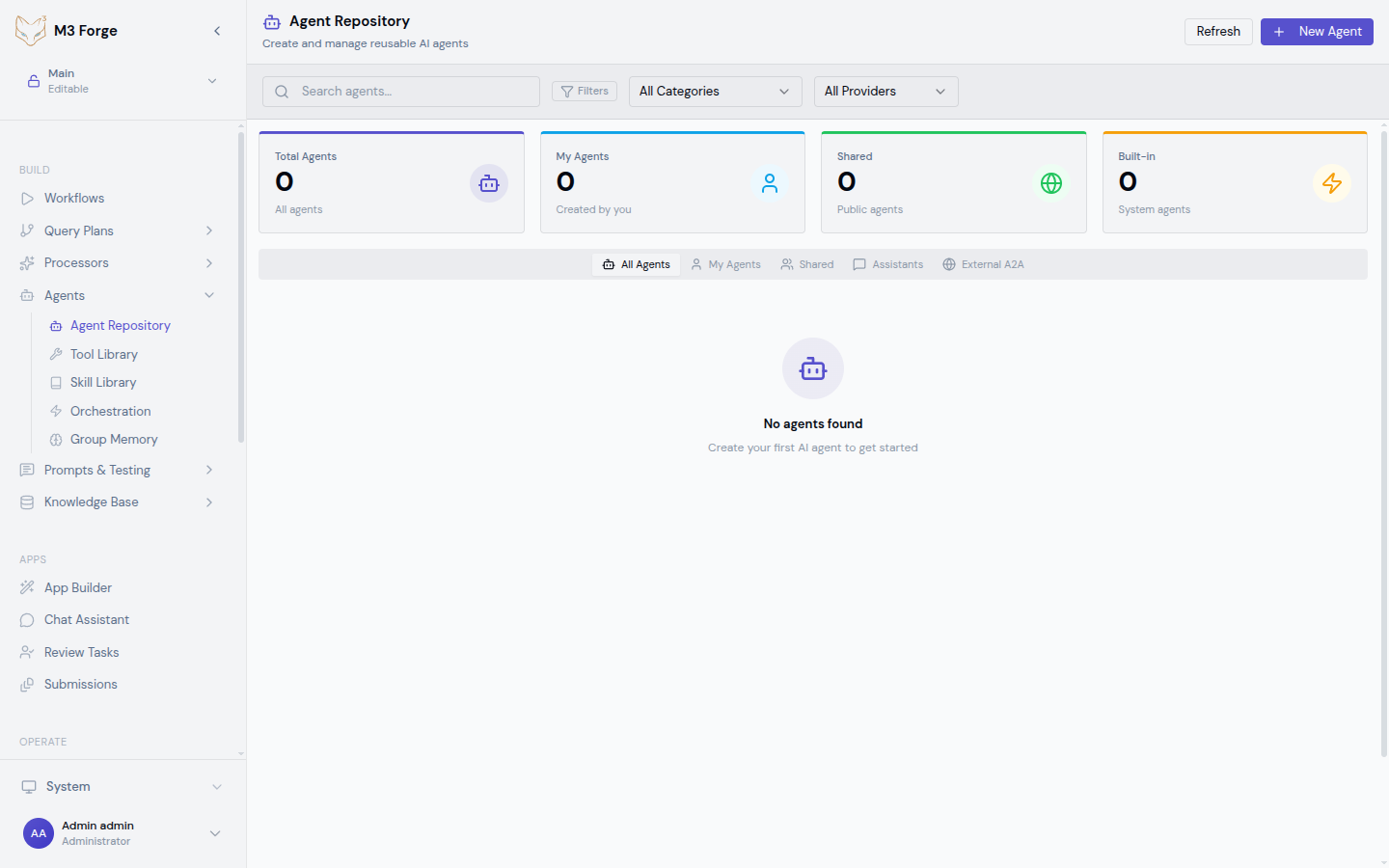
Agent Configuration Options
Model Selection
Choose the LLM that powers your agent:
| Provider | Models | Best For |
|---|---|---|
| OpenAI | GPT-4, GPT-4 Turbo | General reasoning, coding, complex tasks |
| Anthropic | Claude 3 Opus, Sonnet, Haiku | Long context, analysis, safety-critical tasks |
| Qwen | Qwen2.5-72B, Qwen2.5-7B | Multilingual tasks, cost optimization |
| Custom | Any OpenAI-compatible API | Self-hosted models, specialized fine-tunes |
Model selection considerations:
- Task complexity — GPT-4 Opus for hard reasoning, GPT-3.5/Haiku for simple tasks
- Context requirements — Claude 3 supports 200K tokens, ideal for long documents
- Cost — Cheaper models (Haiku, Qwen) for high-volume scenarios
- Latency — Smaller models respond faster
Start with mid-tier models (GPT-3.5 Turbo, Claude Sonnet) for initial development. Upgrade to premium models only if testing reveals gaps in reasoning quality.
System Prompt
The system prompt defines agent behavior, constraints, and output format:
You are a customer service agent for TechCorp.

Capabilities:
- Answer product questions using the knowledge base
- Check order status via the order lookup tool
- Escalate complex issues to human agents

Constraints:
- Never share customer PII
- Maintain professional, empathetic tone
- Provide sources for all factual claims

Output format:
- Start with a brief acknowledgment
- Provide the answer or action taken
- End with "Is there anything else I can help with?"
System prompt best practices:
- Be specific — Vague instructions like “be helpful” produce inconsistent behavior
- Define constraints — Explicit boundaries prevent unsafe outputs
- Provide examples — Few-shot examples in the system prompt improve quality
- Specify format — Structured output requirements (JSON, markdown) ensure parseable responses
Temperature and Parameters
Fine-tune generation behavior:
-
Temperature (0-2) — Randomness in outputs
- 0 = Deterministic, consistent responses
- 0.7 = Balanced creativity
- 1.5+ = High variability, creative outputs
-
Top-P (0-1) — Nucleus sampling threshold
- 1.0 = Consider all tokens
- 0.9 = Restrict to top 90% probability mass
-
Max tokens — Output length limit
- Set based on expected response size
- Higher = more complete responses but higher cost
-
Presence/Frequency penalty — Reduce repetition
- Use 0.3-0.5 to avoid repetitive phrasing
For production agents, use low temperature (0-0.3) for consistency. Reserve high temperature for creative tasks like brainstorming or content generation.
Tool Assignment
Assign tools from the tool library to give agents capabilities:
- Click “Add Tool” in the configuration panel
- Browse available tools by category
- Select tools relevant to agent’s purpose
- Configure tool-specific parameters (optional)
Example tool assignments:
Research Agent:
- Web search tool
- Wikipedia lookup tool
- PDF extractor tool
Coding Agent:
- File read/write tools
- Code execution sandbox
- Git operations tool
Customer Service Agent:
- Knowledge base search
- Order lookup tool
- CRM integration tool
Agents automatically learn how to use assigned tools through function calling or ReAct prompting.
Skills Assignment
Load skills from the filesystem-based skill library:
- Navigate to the Skills tab
- Browse discovered skills
- Toggle skills to enable/disable
- Skills auto-load when the agent starts
Skills provide complex multi-step capabilities that compose multiple tools. See Tools & Skills for details.
Creating an Agent
Open Agent Editor
Navigate to the Agents section and click “Create Agent”.
Basic Configuration
Fill in required fields:
- Name — Descriptive identifier (e.g., “Research Assistant”)
- Description — What the agent does and when to use it
- Model — Select from available LLM connections
- System Prompt — Define agent behavior and constraints
Assign Tools
Click “Add Tools” and select relevant capabilities:
- Browse by category (Web, Files, Data, Communication)
- Multi-select tools with checkboxes
- Drag to reorder priority (agent tries tools in order)
Configure Parameters
Adjust generation settings:
- Set temperature based on use case (0 for consistency, 0.7+ for creativity)
- Configure max tokens to control response length
- Enable JSON mode if agent outputs structured data
Enable Memory (Optional)
To enable group memory:
- Toggle “Enable Group Memory”
- Select existing memory group or create new
- Configure memory retention policy (7 days, 30 days, forever)
Memory allows the agent to recall previous interactions and share context with other agents.
Test the Agent
Before saving, test with sample inputs:
- Enter a test query in the “Test” panel
- Click “Run”
- Review the response and tool usage
- Iterate on system prompt or tool assignment if needed
Save and Deploy
Click “Save Agent”. The agent is now available for:
- Direct use via the agent interface
- Embedding in workflows as an agent node
- Orchestration with other agents
Testing Agents
Interactive Testing
The built-in test panel provides:
- Input field — Enter test queries
- Response viewer — See agent output with syntax highlighting
- Tool log — View which tools were called and with what parameters
- Performance metrics — Response time, token usage, cost per request
Testing workflow:
- Enter a query representative of real usage
- Run the agent
- Evaluate output quality and tool usage
- Adjust system prompt or tool assignment
- Re-test until behavior meets requirements
Edge Case Testing
Test agent behavior in error scenarios:
- Missing information — Query that requires unavailable data
- Tool failure — Simulate tool errors to test recovery
- Ambiguous input — Unclear requests to test clarification behavior
- Security bypass attempts — Try to make agent violate constraints
Robust agents gracefully handle edge cases without breaking character or exposing vulnerabilities.
Always test agents with adversarial inputs before deployment. Agents can be manipulated through prompt injection if not properly constrained.
Batch Testing
For systematic evaluation:
- Create a test suite with input/expected output pairs
- Run the agent against all test cases
- Calculate success rate
- Identify failure patterns
- Refine configuration to address failures
Batch testing enables regression detection when updating agent configuration.
Advanced Features
Agent Cloning
Duplicate existing agents to experiment with variations:
- Select an agent from the repository
- Click “Clone”
- New agent inherits all configuration
- Modify system prompt or tools
- Compare performance against original
Cloning accelerates A/B testing of agent configurations.
Version History
All configuration changes are versioned:
- View commit history for an agent
- Diff between versions
- Rollback to previous configurations
- Tag stable versions for production
Version control ensures safe experimentation and easy rollback.
Agent Templates
Start from pre-built templates for common use cases:
- Research Assistant — Web search, PDF extraction, summarization
- Code Assistant — File operations, code execution, Git
- Data Analyst — Database query, visualization, statistical tools
- Customer Support — Knowledge base search, CRM integration, ticket creation
Templates provide working baseline configurations that can be customized.
Configuration Best Practices
System Prompt Design
Do:
- Define clear role and purpose
- Specify explicit constraints
- Provide output format requirements
- Include few-shot examples for complex tasks
Don’t:
- Use vague instructions like “be smart”
- Overload with too many responsibilities
- Assume common sense (be explicit)
- Include sensitive information in the prompt
Tool Selection
Do:
- Assign only tools the agent needs
- Order tools by usage likelihood
- Test tool combinations for conflicts
- Document tool-specific configuration
Don’t:
- Give all tools to every agent (scope creep)
- Assume the agent will figure out tool usage
- Overlook security implications of powerful tools (file write, command execution)
Temperature Tuning
Use low temperature (0-0.3) for:
- Classification tasks
- Data extraction
- Structured output generation
- Safety-critical decisions
Use high temperature (0.7-1.5) for:
- Creative writing
- Brainstorming
- Diverse option generation
- Exploration tasks
Run experiments with different temperature settings to find the optimal balance for your specific use case. See Prompt Experiments.
Troubleshooting
Agent Not Using Tools
Symptoms: Agent responds without calling assigned tools
Causes:
- System prompt doesn’t mention tool availability
- Temperature too low (model overly conservative)
- Tool descriptions unclear
Solutions:
- Update system prompt: “You have access to the following tools: [list]”
- Increase temperature to 0.3-0.5
- Improve tool descriptions with usage examples
Inconsistent Responses
Symptoms: Same input produces wildly different outputs
Causes:
- Temperature too high
- Ambiguous system prompt
- Conflicting tool results
Solutions:
- Lower temperature to 0-0.3
- Clarify constraints in system prompt
- Add validation logic to tool outputs
Exceeding Context Window
Symptoms: Errors about token limits
Causes:
- Long conversation history with memory enabled
- Large tool outputs
- Verbose system prompt
Solutions:
- Limit memory retention window
- Summarize tool outputs before returning to agent
- Use models with larger context (Claude 200K)
Next Steps
- Assign tools and skills to enhance agent capabilities
- Enable group memory for persistent context
- Orchestrate multiple agents for complex workflows