Events
Events provides dual-mode monitoring for Marie-AI backend activity — real-time streaming for live observation and historical search for post-incident analysis.
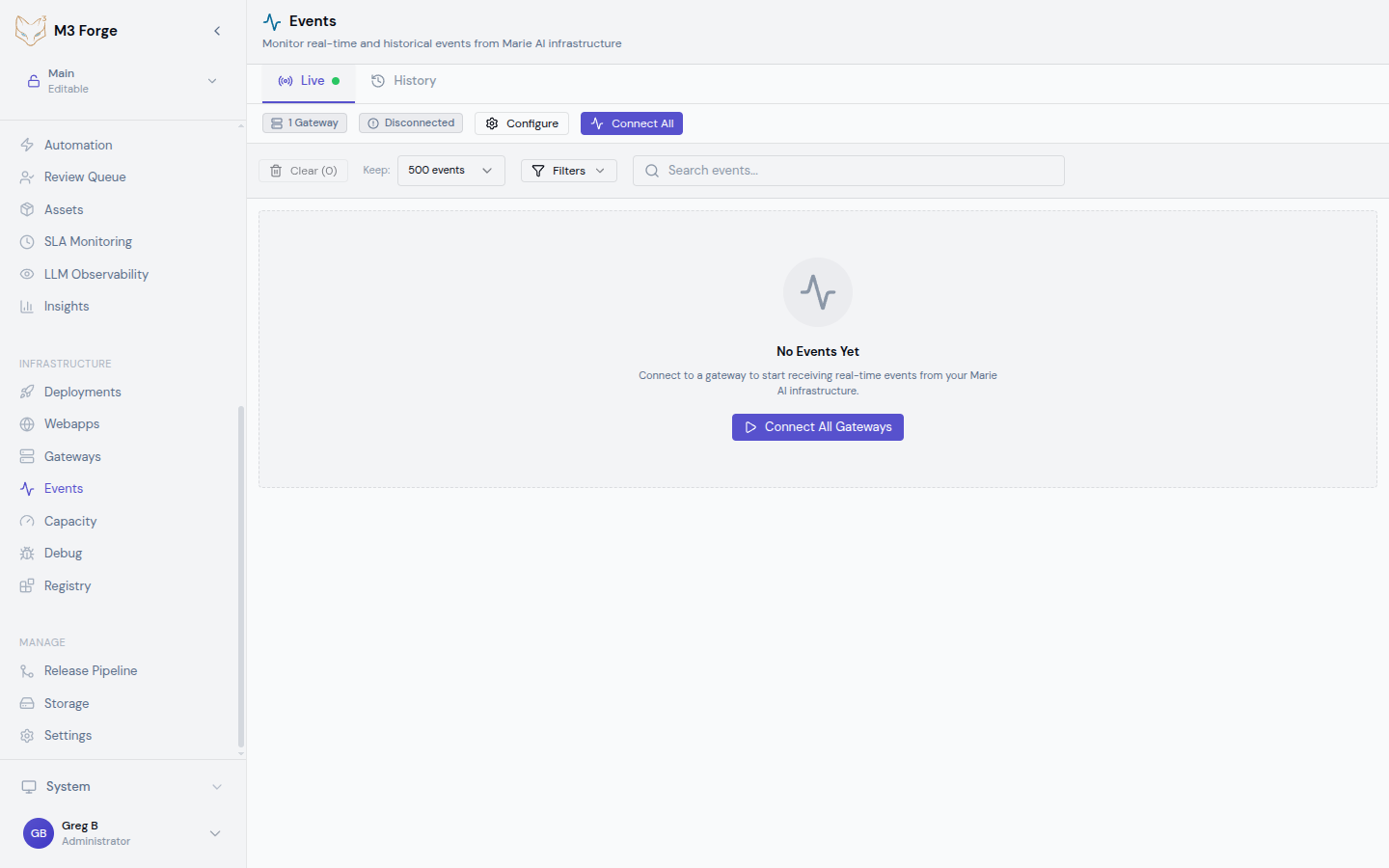
Overview
The Events page connects to configured Gateways to collect and display system events, logs, and metrics from Marie-AI backends.
Two Modes:
- Live Tab: Real-time Server-Sent Events (SSE) stream from connected gateways
- History Tab: Query and analyze historical events stored in ClickHouse
Events enable:
- Monitoring backend health and activity
- Debugging issues as they occur
- Investigating past incidents
- Tracking event patterns and anomalies
- Exporting data for external analysis
Accessing Events
Navigate to Infrastructure → Events from the main navigation.
The interface displays two tabs:
- Live: Real-time event streaming
- History: Historical event search
Live Tab
Real-time event monitoring streams events directly from connected gateways via SSE.
Metric Cards
The Live tab header displays key metrics:
- Event Count: Total events received in current session
- Connection Status: Number of connected/disconnected gateways
- Event Rate: Events per second (rolling average)
- Uptime: Time since streaming started
Event Stream
Events appear in a scrollable list, newest first (or oldest first if auto-scroll is disabled).
Each event row shows:
- Timestamp: When the event occurred
- Severity Indicator: Color-coded badge (error, warning, info, debug)
- Event Type: Category badge (e.g., “processor.start”, “queue.overflow”)
- Source: Gateway that emitted the event
- Message: Event description or log message
- Expand Icon: Click to view full JSON payload
Events are color-coded by severity:
- 🔴 Error: Critical issues requiring attention
- 🟡 Warning: Potential problems or degraded performance
- 🔵 Info: Normal operational events
- ⚪ Debug: Detailed diagnostic information
Filtering Events
By Source: Use the source dropdown to show events from specific gateways only. Useful when monitoring a particular backend.
By Search: Enter text in the search bar to filter events by:
- Message content
- Event type
- Source name
- JSON payload (in expanded view)
Search is case-insensitive and updates results in real-time.
Stream Controls
Pause/Resume: Click the pause button to stop receiving new events while reviewing current ones. Click resume to continue streaming.
Auto-Scroll: Toggle auto-scroll to control whether the view automatically scrolls to show newest events. Disable to manually inspect events without interruption.
Clear: Clear the current event list (does not affect history).
Event Details
Click the expand icon on any event to view its full JSON payload. This includes:
- Complete event metadata
- Structured log data
- Trace IDs and span information (for distributed tracing)
- Custom fields from the backend
Copy JSON: Click the copy icon to copy the full event JSON to clipboard.
Exporting Live Data
Export Visible Events: Click Export to download currently displayed events as:
- JSON (for programmatic analysis)
- CSV (for spreadsheets)
Export only includes events currently loaded in the UI. For comprehensive data export, use the History tab.
History Tab
Search and analyze historical events stored in ClickHouse.
Time Range Selection
Choose the time window for your search:
Relative Ranges:
- Last 1 hour
- Last 24 hours
- Last 7 days
- Last 30 days
Absolute Range: Click “Custom” to select specific start and end dates/times.
Search Filters
Event Type: Filter by event category (e.g., “processor.*”, “queue.overflow”).
Severity: Select one or more severity levels (error, warning, info, debug).
Gateway: Limit results to specific gateways.
Full-Text Search: Search event messages and payloads for keywords.
Filters are combined with AND logic. All conditions must match for an event to appear in results.
Results Table
Historical events display in a paginated table with columns:
- Timestamp: Event time (sortable)
- Severity: Color-coded indicator
- Type: Event category
- Gateway: Source backend
- Message: Event description
- Actions: Expand details, copy JSON
Pagination: Navigate through results using page controls. Default: 50 events per page.
Sorting: Click column headers to sort by timestamp, severity, or type.
Exporting Historical Data
Click Export to download search results:
- JSON: Full event data with all fields
- CSV: Flattened for spreadsheet analysis
Exports include all matching events (not just current page).
HyperDX Integration
For advanced analysis, click Open in HyperDX to view events in HyperDX’s observability platform. This provides:
- Correlated logs, traces, and metrics
- Advanced querying and visualization
- Alerting and anomaly detection
HyperDX integration requires gateway configuration with OTEL endpoints enabled.
Architecture
Understanding the event pipeline helps troubleshoot issues and optimize monitoring.
Live Events Flow
Marie-AI Backend → SSE Connection → M3 Forge Frontend → Live Tab- Backend: Marie-AI emits events via Server-Sent Events (SSE)
- Gateway: M3 Forge establishes SSE connection using bearer token
- Frontend: Events stream in real-time to browser
- Display: Live tab renders events with filtering and search
Authentication: Bearer tokens (configured in Gateways) authenticate SSE connections.
Connection Management: Connections are persistent. If dropped, M3 Forge automatically reconnects.
Historical Events Flow
Backend → OTELToastHandler → OTEL Collector → ClickHouse → tRPC API → History Tab- OTELToastHandler: Custom logging handler exports events as OTEL signals
- OTEL Collector: Collects, processes, and routes events
- ClickHouse: High-performance storage for time-series event data
- tRPC API: Queries ClickHouse and returns results
- History Tab: Displays results with filtering and export
Benefits:
- Long-term retention of events
- Fast querying across large datasets
- Integration with observability tools
Event Types
Common event types emitted by Marie-AI:
| Type | Description | Severity |
|---|---|---|
processor.start | Processing job started | Info |
processor.complete | Processing job completed successfully | Info |
processor.error | Processing job failed | Error |
queue.enqueue | Item added to processing queue | Debug |
queue.overflow | Queue capacity exceeded | Warning |
service.start | Marie service started | Info |
service.stop | Marie service stopped | Warning |
health.degraded | Service health check degraded | Warning |
health.failed | Service health check failed | Error |
Event types are extensible. Custom backends may emit additional types.
Troubleshooting
No Events in Live Tab
Check:
- Gateway connection status (Infrastructure → Gateways)
- Bearer token is valid
- Backend is emitting events (check backend logs)
- Firewall allows SSE connections
Test: Click Test Connection in the gateway settings to verify connectivity.
Live Stream Disconnects Frequently
Possible causes:
- Network instability
- Backend restarts
- Load balancer timeout
- Expired bearer token
Solutions:
- Check network quality
- Increase SSE timeout on backend/load balancer
- Rotate bearer token in gateway settings
- Review backend logs for connection errors
Events Not Appearing in History
Possible causes:
- OTEL pipeline not configured
- ClickHouse connection issues
- Events not within selected time range
Solutions:
- Verify OTEL Collector is running and receiving events
- Check ClickHouse connectivity and table schema
- Expand time range to include older events
- Review OTEL Collector logs for export errors
Search Returns No Results
Check:
- Time range includes the expected events
- Filters are not too restrictive (try removing filters)
- Events were actually emitted by backend during that period
Test: Remove all filters and expand time range to “Last 7 days” to verify data exists.
Export Fails or Is Empty
If export produces no data:
- Ensure events are visible in the UI before exporting
- Check browser console for errors
- Verify sufficient permissions (if role-based access is enabled)
If export times out:
- Reduce time range or add filters to limit result size
- Try exporting smaller batches
HyperDX Link Not Working
Possible causes:
- HyperDX integration not configured
- OTEL endpoints not enabled on gateway
- Invalid HyperDX URL
Solutions:
- Verify HyperDX configuration in gateway settings
- Enable OTEL export on backend
- Contact administrator for HyperDX access
Best Practices
- Use Live for active monitoring: Keep Live tab open during deployments or debugging
- Use History for investigations: Query specific time ranges when troubleshooting past incidents
- Filter by severity: Focus on errors and warnings to reduce noise
- Export critical events: Save evidence of incidents for post-mortems
- Leverage HyperDX: Use integrated observability for complex analysis
- Monitor event rate: Sudden spikes may indicate issues (check metric cards)
- Pause during analysis: Use pause/resume to review events without stream interruption
- Clear regularly: Clear Live tab periodically to maintain performance