Registry
Component registry view displaying installed extraction components, query planners, and hot-reload configuration for your gateway infrastructure.
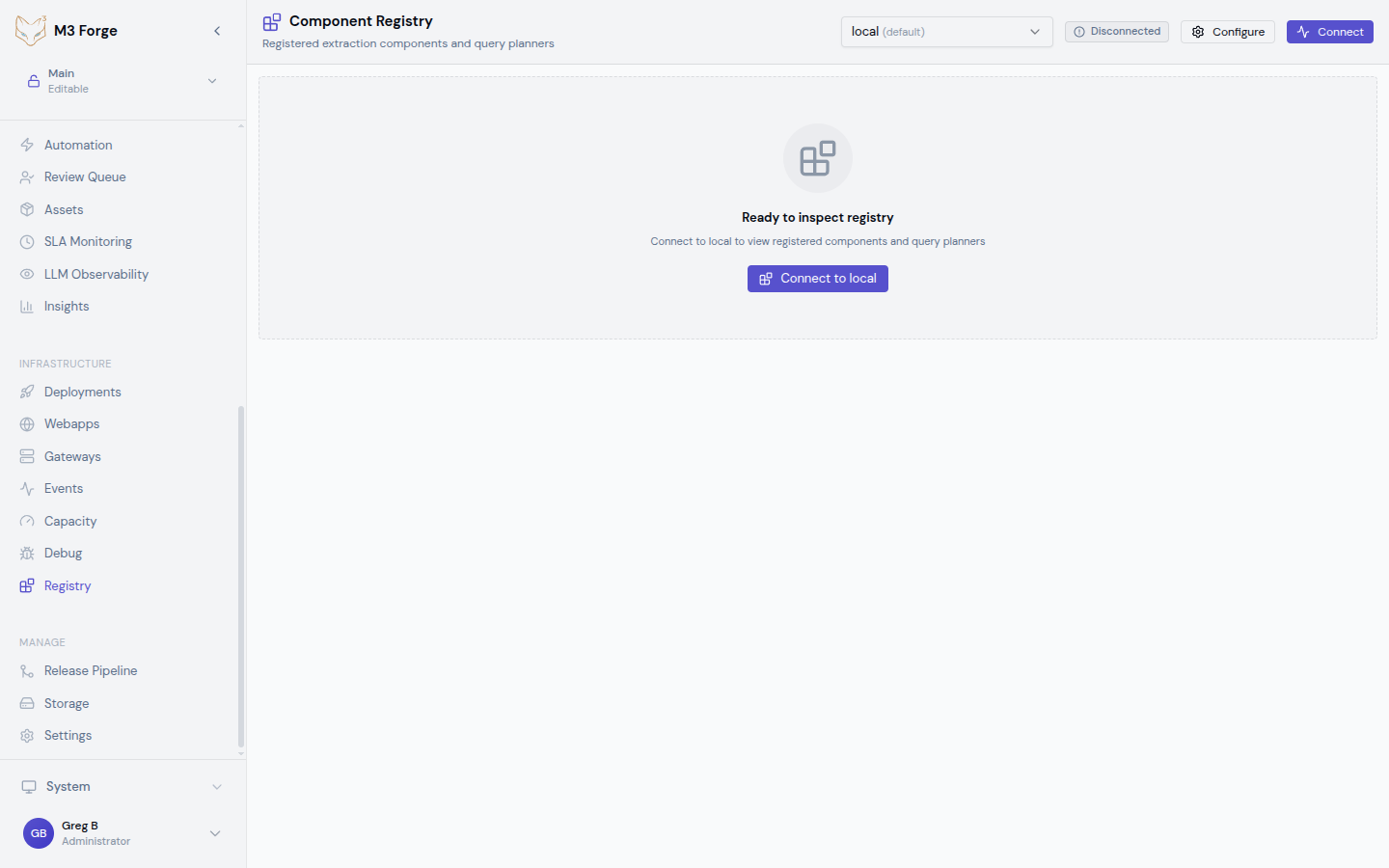
Overview
The Registry view provides visibility into the extraction components and query planners installed on your gateways. This unified view combines component registry and planner registry data to show exactly what extraction capabilities are available.
Key capabilities:
- Component categorization by type
- Installed wheel packages with version tracking
- Hot-reload watched directories
- Combined component and planner registry view
- Per-gateway registration status
Registry information is retrieved via the gateways.getRegistryInfo tRPC endpoint.
Component Categories
The Registry view organizes components into logical categories:
Parsers
Document parsers that extract structured data from various file formats.
Examples:
- PDF parsers
- Image parsers (TIFF, PNG, JPEG)
- Office document parsers (DOCX, XLSX)
- Form parsers
- Table extractors
Icon: Document with magnifying glass
Validators
Rule-based validators that verify extraction results meet quality and business requirements.
Examples:
- Schema validators
- Data type validators
- Business rule validators
- Format validators
- Cross-field validators
Icon: Checkmark shield
Template Builders
Components that construct extraction templates from configuration or learned patterns.
Examples:
- Static template builders
- Machine learning template builders
- Adaptive template builders
- Layout-based template builders
Icon: Blueprint/template grid
Region Processors
Specialized processors for handling specific document regions or zones.
Examples:
- Header processors
- Footer processors
- Signature region processors
- Table zone processors
- Form field processors
Icon: Crop/region selector
Processing Visitors
Visitor pattern components that traverse and transform extraction results.
Examples:
- Data normalization visitors
- Entity extraction visitors
- Relationship builders
- Format converters
- Quality score calculators
Icon: Workflow nodes
Context Providers
Components that supply contextual information to improve extraction accuracy.
Examples:
- Document type context providers
- Historical data providers
- Business domain context
- Reference data providers
- Metadata enrichers
Icon: Database/context layers
Component categories help you understand the extraction pipeline stages and identify missing capabilities.
Component Display
Each component category shows:
| Information | Description | Display Limit |
|---|---|---|
| Component Count | Total registered components in this category | Always shown |
| Component Names | Individual component identifiers | Up to 50 items |
| Count-Only Mode | For categories with >50 components | Shows count badge only |
Understanding Component Names
Component names typically follow this pattern:
<domain>.<category>.<specific_function>Examples:
extraction.parsers.pdf_standardvalidation.rules.date_formatprocessing.visitors.entity_extractor
The naming convention helps you understand component purpose and organization.
Installed Wheels
The Registry view displays all installed Python wheel packages that provide extraction functionality:
Wheel Information
- Package Name: The wheel’s Python package identifier
- Version: Semantic version number (e.g.,
1.2.3) - Installation Source: Component registry, planner registry, or both
Combined Registry
Wheels are aggregated from:
- Component Registry: Standard extraction components
- Planner Registry: Query planning and routing components
A wheel appearing in both registries indicates it provides both extraction components and query planning capabilities.
Version Tracking
Version information helps you:
- Verify correct component versions are deployed
- Identify version mismatches across gateways
- Plan upgrades and rollbacks
- Troubleshoot version-specific issues
Example:
marie-extractors: 2.4.1
marie-validators: 1.8.0
custom-parsers: 0.3.2
Watched Directories
The Registry view displays file system paths monitored for hot-reload of extraction components:
Directory Monitoring
Watched directories are paths where:
- Component Python files are located
- Changes trigger automatic reload
- New components are automatically registered
- Removed components are unregistered
Deduplication
Directory paths are deduplicated across component and planner registries to avoid showing the same path multiple times.
Example watched directories:
/opt/marie/components/extractors
/opt/marie/components/validators
/opt/marie/plugins/custom
/home/developer/marie-dev/local-components
Changes to files in watched directories will trigger hot-reload without gateway restart. Use with caution in production.
Hot-Reload Behavior
The Registry view helps you understand hot-reload configuration and behavior:
How Hot-Reload Works
File Change Detection
The gateway monitors watched directories for:
- New Python files added
- Existing files modified
- Files deleted or moved
Component Scanning
When changes are detected:
- Python modules are reloaded
- Component classes are re-scanned
- Registry is updated with new/modified components
Availability
Updated components become immediately available:
- New extraction requests use updated components
- In-flight requests complete with old components
- No gateway restart required
Hot-Reload Use Cases
| Scenario | Benefits |
|---|---|
| Development | Rapid iteration without restarts |
| Hot Fixes | Deploy fixes without downtime |
| A/B Testing | Test new components alongside stable versions |
| Plugin Development | Develop custom components with immediate feedback |
Hot-reload in production should be used carefully. Consider these risks:
- Untested components can break extraction
- Memory leaks from repeated reloads
- Inconsistent state during reload
Understanding Component Registration
Components are registered when:
- Gateway Start: All components in configured paths are scanned and registered
- Hot-Reload: File changes trigger re-registration
- Manual Registration: API calls to register specific components
- Plugin Installation: Installing wheel packages registers their components
Registration Process
Discovery
Gateway scans configured paths for Python modules containing component classes.
Validation
Each component is validated:
- Implements required interfaces
- Has proper metadata (name, version, category)
- Passes initialization checks
Registration
Valid components are added to the registry:
- Assigned to appropriate category
- Made available to extraction pipeline
- Listed in Registry view
Verification
Check the Registry view to verify:
- Component appears in correct category
- Version matches expectation
- Wheel package is listed
Component Categories Explained
Parsers
Parsers are the entry point of the extraction pipeline, responsible for reading document files and producing initial structured data.
When to add parsers:
- Supporting a new file format
- Improving extraction quality for specific document types
- Handling non-standard or legacy formats
Validators
Validators enforce quality and business rules on extraction results, ensuring data meets requirements before downstream processing.
When to add validators:
- Implementing new business rules
- Adding data quality checks
- Enforcing compliance requirements
Template Builders
Template builders construct extraction templates that define how to extract structured data from specific document layouts.
When to add template builders:
- Supporting new template formats
- Implementing machine learning-based template generation
- Handling dynamic document layouts
Region Processors
Region processors handle specific areas of documents, applying specialized extraction logic to headers, tables, signatures, and other zones.
When to add region processors:
- Extracting data from specific document regions
- Implementing zone-specific processing rules
- Handling complex layouts
Processing Visitors
Visitors traverse and transform extraction results, normalizing data, extracting entities, and calculating quality scores.
When to add processing visitors:
- Implementing data transformations
- Extracting higher-level entities
- Calculating custom quality metrics
Context Providers
Context providers supply additional information that improves extraction accuracy by incorporating business domain knowledge and historical data.
When to add context providers:
- Integrating reference data
- Leveraging historical extraction results
- Applying domain-specific knowledge
Interpreting Registry Data
Healthy Registry
A well-configured gateway registry shows:
- All expected component categories populated
- Version numbers consistent across gateways
- Watched directories match deployment configuration
- No missing or duplicate components
Warning Signs
- Empty categories: Missing component types may limit extraction capabilities
- Version mismatches: Different gateways running different component versions
- Unexpected wheels: Unknown packages may indicate deployment issues
- No watched directories: Hot-reload is disabled
Compare registry data across multiple gateways to ensure consistent component deployment.
Common Scenarios
Scenario 1: Verifying Component Deployment
After deploying new extraction components:
- Navigate to Registry view
- Select the gateway where components were deployed
- Verify component appears in appropriate category
- Check wheel version matches deployed package
- Confirm watched directory includes component path
Scenario 2: Troubleshooting Missing Components
If expected components aren’t available:
- Check component category for component name
- Verify wheel package is listed in installed wheels
- Confirm watched directories include component location
- Review gateway logs for registration errors
- Check component implementation for registration issues
Scenario 3: Hot-Reload Verification
After modifying a component file:
- Note the component count before modification
- Make file changes in a watched directory
- Wait for hot-reload (typically 1-5 seconds)
- Refresh Registry view
- Verify component count or version updated
Scenario 4: Auditing Installed Components
For compliance or security audits:
- Export registry data for all gateways
- Compare installed wheels across environments
- Verify component versions match approved versions
- Document watched directories for security review
- Cross-reference with deployment manifests
Best Practices
- Version consistency: Deploy identical component versions across all gateways
- Regular audits: Periodically review installed components for unexpected changes
- Document custom components: Maintain inventory of custom components and their purposes
- Test before hot-reload: Test component changes in development before hot-reloading in production
- Monitor watched directories: Restrict write access to watched directories in production
Troubleshooting
Components not appearing
- Verify component files are in a watched directory
- Check gateway logs for registration errors
- Confirm component implements required interfaces
- Verify wheel package is properly installed
Hot-reload not working
- Confirm directories are listed in watched directories
- Check file system permissions for gateway process
- Verify hot-reload is enabled in gateway configuration
- Review logs for file monitoring errors
Version mismatches
- Compare installed wheels across gateways
- Check deployment process for version pinning
- Verify package index sources are consistent
- Review recent deployments for version changes
Duplicate components
- Check for components registered from multiple sources
- Review watched directories for overlapping paths
- Verify wheel packages don’t conflict
- Check for manual and automatic registration overlap
If registry data appears incorrect or incomplete, verify gateway connectivity and tRPC endpoint availability in the Debug view.
Next Steps
- Use the Debug view to verify gateway health after component deployment
- Check the Capacity view to ensure components aren’t exhausting resources
- Review the Jobs view to see how new components affect extraction operations
- Explore Custom Components for developing your own extraction components