Review Queue
The Review Queue is your HITL inbox, displaying all requests awaiting human judgment. Efficient queue management ensures SLA compliance and maximizes reviewer productivity.
Queue Interface
Access the review queue from HITL → Inbox in the main navigation.
Queue Layout
The interface uses a master-detail layout:
- Left Panel — Request list with filters and search
- Right Panel — Selected request details
- Action Bar — Quick actions (claim, complete, escalate)
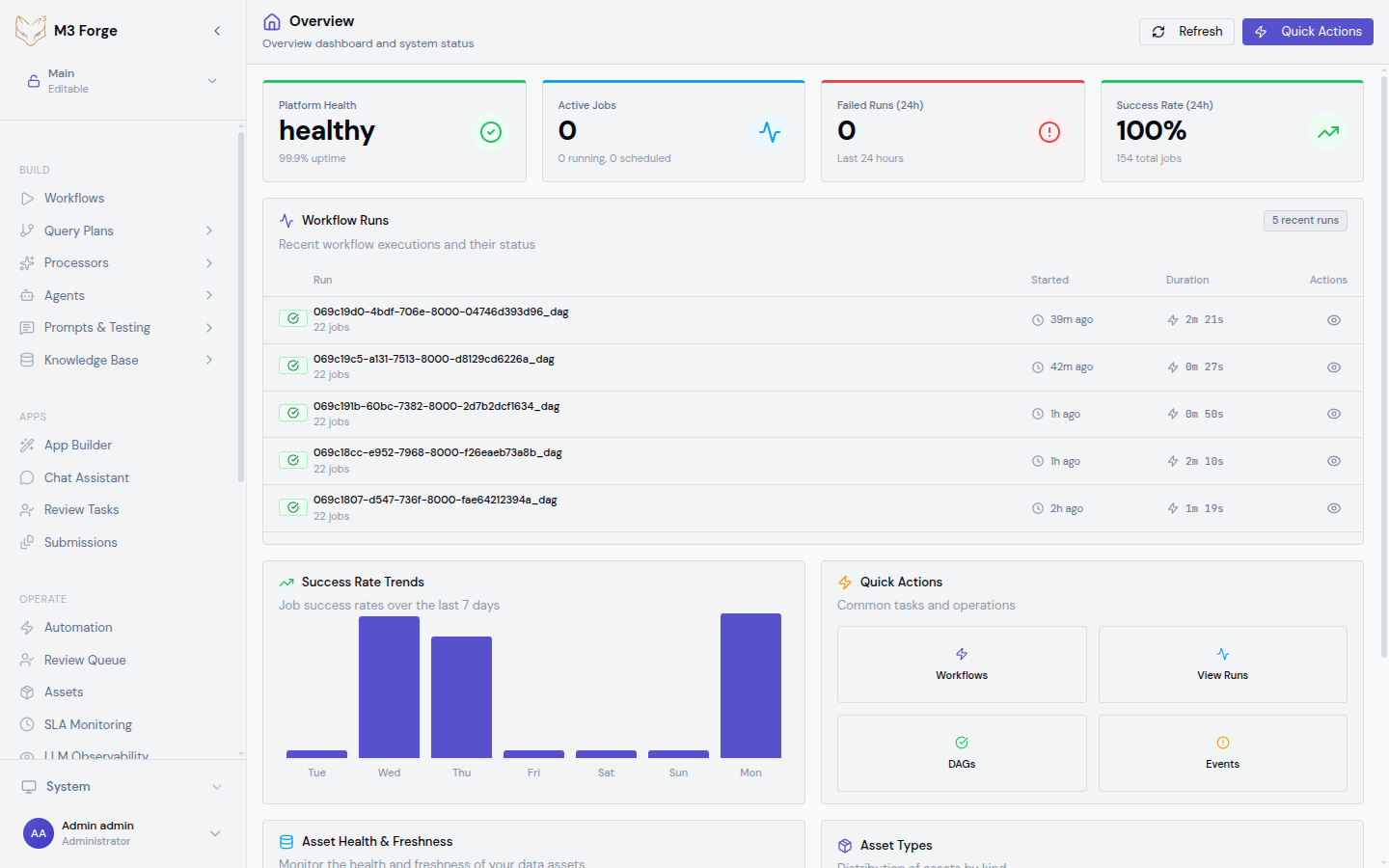
Request List Columns
| Column | Description | Sortable |
|---|---|---|
| Status | Current state (pending, in review, etc.) | Yes |
| Request | Title and description | No |
| Type | Approval, correction, or router | Yes |
| Priority | Critical, high, medium, low | Yes |
| Created | Request creation time | Yes |
| Timeout | SLA deadline (time remaining) | Yes |
| Actions | Quick action buttons | No |
Visual Indicators
Priority Colors:
- Critical: Red badge with alert icon
- High: Orange badge with warning icon
- Medium: Blue badge with info icon
- Low: Gray badge with clock icon
Status Colors:
- Pending: Gray (awaiting assignment)
- In Review: Blue (actively being reviewed)
- Completed: Green (resolved successfully)
- Timeout: Orange (exceeded SLA)
- Escalated: Red (sent to specialist)
Timeout Warnings:
- Yellow background when <2 hours remaining
- Red background when <30 minutes remaining
- Pulsing indicator for critical priority near timeout
Requests nearing timeout appear at the top of the queue regardless of sort order, ensuring SLA compliance.
Filtering and Search
Status Filters
Quick filter buttons above the list:
- All — Show all requests
- Pending — Only unassigned requests
- In Review — Only requests you’re actively reviewing
- Completed — Resolved requests (last 7 days)
Click multiple filters to combine (OR logic).
Priority Filters
Filter by priority level:
- All — All priority levels
- Critical — Only critical requests
- High — High priority only
- Medium — Medium priority only
- Low — Low priority only
Combine with status filters for precise queries.
Search
Search bar supports:
- Title search — Match request title
- ID search — Look up by request ID
- Description search — Search request descriptions
- Context search — Search request metadata
Search is case-insensitive and matches partial strings.
Advanced Filters
Click More Filters to access:
- Date range — Created after/before specific dates
- Assignee — Requests assigned to specific users
- Workflow — Requests from specific workflows
- Document type — Filter by document classification
- Confidence range — Requests with AI confidence in range
Save frequently used filter combinations as presets.
Claiming Requests
Manual Claiming
Select Request
Click request row to view details in right panel.
Review Context
Examine request details, context data, and attached documents.
Claim Request
Click Start Review to claim the request.
Request status changes to “In Review” and is assigned to you.
Begin Review
Use review panel to complete approval, correction, or routing.
Auto-Assignment
If auto-assignment is enabled:
- Requests automatically assign to you when you open inbox
- Assignment based on configured strategy (round-robin, skill-based, etc.)
- Claim happens instantly, no manual action required
Disable auto-assignment in user preferences if you prefer manual claiming.
Claiming Rules
- One request per reviewer (no double-claiming)
- Claimed requests locked for 15 minutes
- Auto-release if no action taken (returns to pending)
- Managers can reassign claimed requests
Request Details Panel
Right panel shows comprehensive request information:
Header Section
- Request Title — Primary description
- Request ID — Unique identifier for tracking
- Status Badge — Current state with color coding
- Priority Badge — Priority level with icon
- Created Time — When request was created
- Timeout Time — SLA deadline (if applicable)
- Requires All Approval — Whether all assignees must approve
Context Section
Workflow Context:
- Workflow name and execution ID
- Current step in workflow
- Previous processing results
Document Context:
- Attached document preview
- Document metadata (type, size, page count)
- Processing history
Custom Context:
- Workflow-specific data
- Business rules and constraints
- Previous decisions or annotations
Action Buttons
- Review — Open full review interface
- Claim — Assign request to yourself (if unclaimed)
- Escalate — Send to specialist or manager
- Reassign — Assign to different reviewer
- Cancel — Cancel request and resume workflow
Keyboard Navigation
Efficient queue navigation via keyboard:
| Shortcut | Action |
|---|---|
↓ / ↑ | Navigate request list |
Enter | Open selected request |
Space | Toggle request details |
C | Claim selected request |
R | Open review panel |
E | Escalate request |
? | Show all shortcuts |
Navigate entire queue without using mouse.
Power users can process 50+ requests per hour using keyboard shortcuts. Mouse-only navigation is 3x slower.
Queue Metrics
Dashboard at top of queue shows:
Active Metrics:
- Total requests in queue
- Pending (unassigned)
- In review (claimed by you)
- Near timeout (SLA < 2 hours)
Performance Metrics:
- Average resolution time
- SLA compliance rate (last 7 days)
- Your personal resolution time
- Queue depth trend (growing/shrinking)
Alerts:
- Critical requests near timeout
- Queue backlog (>100 requests)
- SLA at risk (compliance <90%)
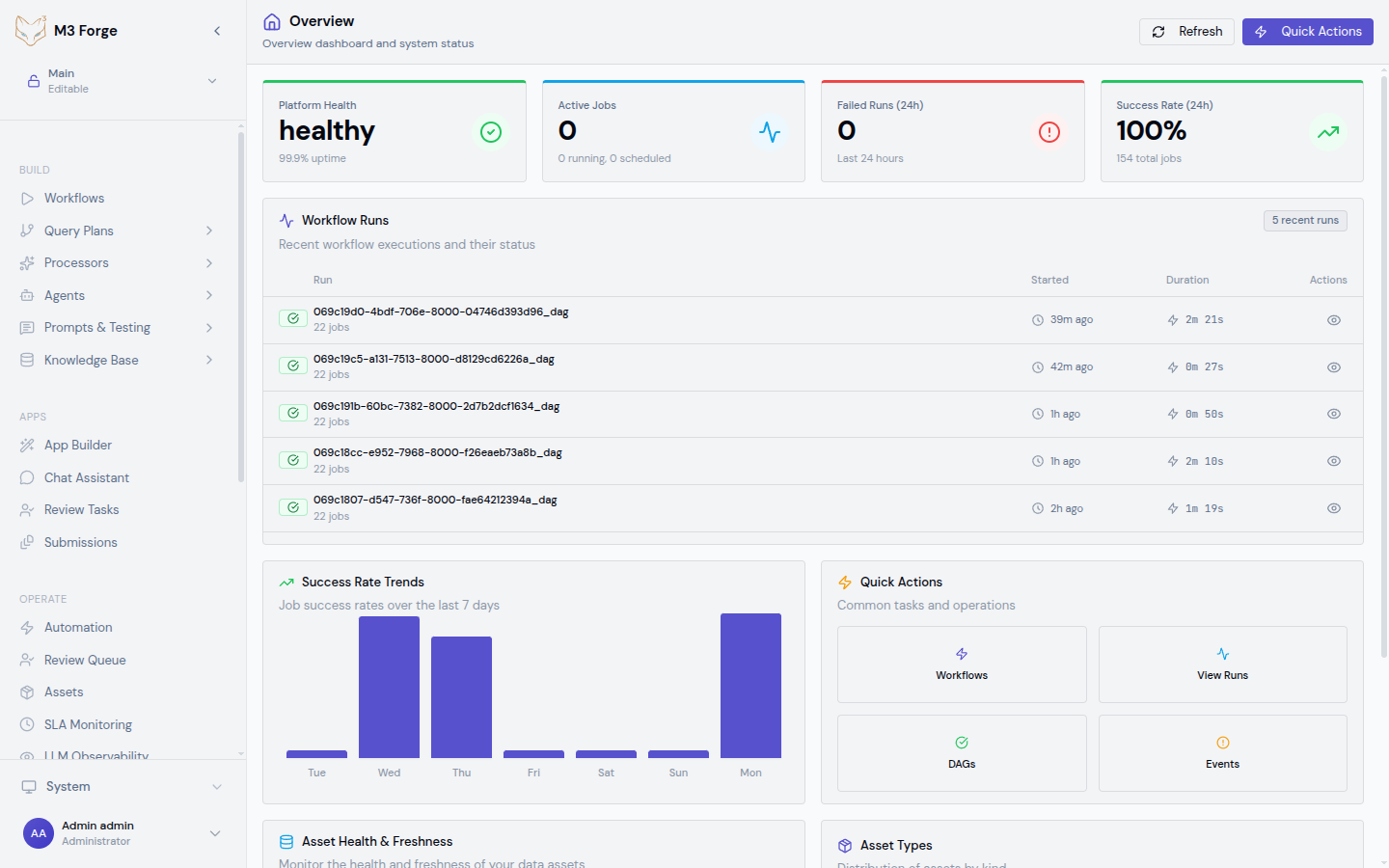
Metrics update in real-time as requests are created and resolved.
Bulk Actions
Select multiple requests for batch operations:
Selecting Requests
- Checkbox — Click checkbox to select individual requests
- Shift+Click — Select range of requests
- Ctrl/Cmd+Click — Toggle individual selections
- Select All — Select all visible requests (respects filters)
Available Bulk Actions
- Assign to User — Assign all selected to specific reviewer
- Set Priority — Change priority level for all selected
- Escalate — Escalate all to specialist queue
- Export — Download request details as CSV
Bulk actions save significant time when processing similar requests.
Bulk assignment overrides existing assignments. Confirm before applying to in-review requests.
Queue Management
Prioritization Strategies
SLA-Based:
- Sort by timeout (ascending) to address urgent items first
- Focus on critical and high priority
- Address near-timeout requests regardless of priority
Batch Processing:
- Sort by request type (all approvals together)
- Group similar document types
- Process in batches for efficiency
Mixed Strategy:
- Handle critical/near-timeout first
- Batch process medium priority
- Low priority during idle periods
Configure default sort order in user preferences.
Load Balancing
For team queues:
- Monitor queue depth — Ensure no reviewer overloaded
- Redistribute — Reassign requests from busy to idle reviewers
- Specialist routing — Route complex requests to experts
- Skill matching — Assign based on reviewer expertise
Managers can view team-wide queue metrics and redistribute work.
Queue Notifications
Stay informed with real-time alerts:
Browser Notifications:
- New critical requests assigned
- Timeout warnings (2 hours, 30 minutes remaining)
- Escalations received
- Requests reassigned to you
Email Digests:
- Daily queue summary
- Pending requests report
- SLA compliance report
Slack/Teams Integration:
- Real-time notifications in team channels
- Assignee mentions
- Critical request alerts
Configure notification preferences in user settings.
Mobile Queue Access
Review queue accessible on mobile devices:
- Responsive layout — Optimized for phone/tablet
- Touch gestures — Swipe to claim/complete
- Offline mode — Queue downloads for offline review
- Push notifications — Native mobile alerts
Install M3 Forge mobile app for best mobile experience.
Common Queue Workflows
Morning Queue Triage
Check Critical Items
Filter for critical priority and near-timeout requests.
Claim Urgent Requests
Claim and immediately review critical items.
Batch Process Medium Priority
Group similar requests and process in batches.
Defer Low Priority
Leave low priority for later in day or delegate.
Backlog Clearance
When queue is backed up:
- Reassign — Distribute to team members
- Escalate — Send complex items to specialists
- Extend SLAs — Request deadline extensions (if allowed)
- Auto-approve low priority — Enable for non-critical items
- Prioritize ruthlessly — Focus on highest value first
Specialist Review
For escalated or complex requests:
- Review original decision — Understand why escalated
- Deep dive — Thorough examination of context
- Collaborate — Consult with team if needed
- Document decision — Add notes for future reference
- Resolve or re-escalate — Complete or escalate further
Next Steps
- Use Review Panel to complete requests
- Configure Submissions for document intake
- Monitor queue metrics in Monitoring
- Integrate HITL nodes into Workflows