Chat Assistant
The Chat Assistant provides conversational AI interfaces with persistent memory, thread management, and tool integration. Build intelligent chatbots for customer support, internal Q&A, document analysis, and knowledge exploration.
Chat Features
M3 Forge’s Chat Assistant combines multiple AI capabilities:
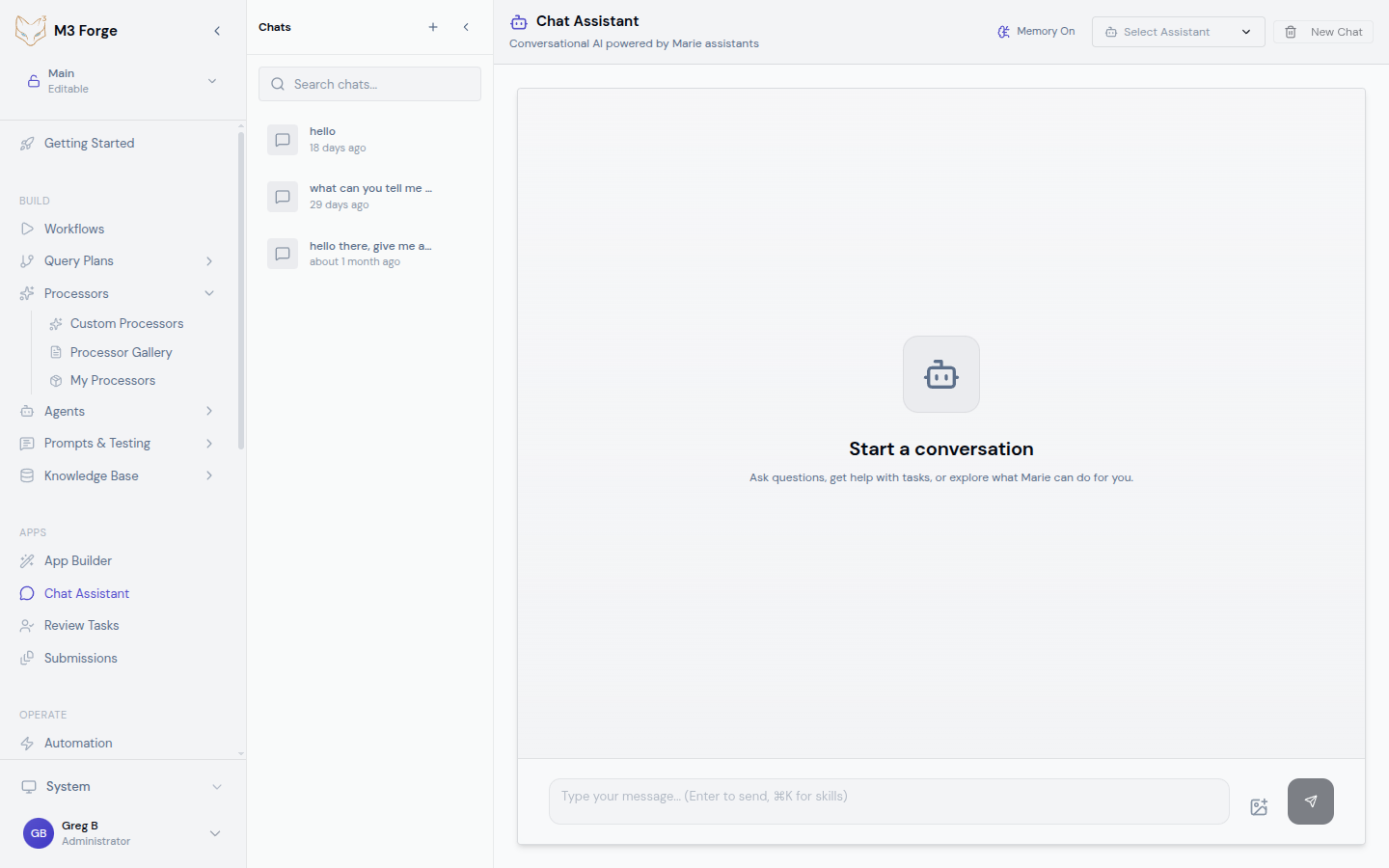
Thread-Based Conversations
- Persistent history — Conversations saved across sessions
- Thread management — Create, archive, delete threads
- Context continuity — Assistant remembers entire conversation
- Thread switching — Resume any past conversation
Memory Integration (mem0)
- Long-term memory — Remember user preferences and facts across threads
- Contextual awareness — Recall relevant information automatically
- Personalization — Adapt responses based on user history
- Memory toggle — Enable/disable per thread
Assistant Selection
- Specialized assistants — Choose assistant for specific tasks
- Pre-configured skills — Assistants come with relevant tools
- Custom personalities — Different tone and behavior per assistant
- Quick switching — Change assistant mid-conversation
Image Support
- Image attachments — Upload images to messages
- Visual Q&A — Ask questions about images
- Multi-modal understanding — Combine text and images
- Drag-and-drop — Easy image upload
Skill/Tool Integration
- Command palette (Cmd+K) — Invoke tools during conversation
- Available skills — Access processor, workflow, and knowledge capabilities
- Tool results inline — See tool outputs in conversation
- Skill management — Enable/disable skills per thread
Real-Time Streaming
- Token-by-token — See response generate in real-time
- Interruption — Stop generation if needed
- Progress indication — Show when assistant is thinking
Chat uses your configured LLM connections. Ensure at least one LLM is configured before using Chat Assistant.
Using Chat Assistant
Access Chat from Apps → Chat in main navigation.
Starting a Conversation
Select Assistant
Click assistant dropdown to choose specialized assistant:
- General Assistant — All-purpose conversational AI
- Document Expert — Specialized in document analysis
- Code Helper — Programming and technical questions
- Data Analyst — Data interpretation and insights
- Custom Assistants — Organization-specific assistants
Each assistant has pre-configured skills and knowledge.
Type Message
Enter message in text input at bottom. Use:
- Enter — Send message (Shift+Enter for new line)
- Paste — Paste text or images from clipboard
- Drag-and-drop — Attach images from desktop
Invoke Skills (Optional)
Press Cmd+K (Mac) or Ctrl+K (Windows) to open skill palette:
- Type to filter available skills
- Select skill to invoke
- Skill name appears as tag in message
- Send message to execute with skill
Receive Response
Assistant generates response token-by-token. While generating:
- See tokens appear in real-time
- Click Stop to interrupt generation
- Thinking indicator shows when processing
Continue Conversation
Follow-up messages maintain context. Assistant remembers:
- Previous messages in thread
- User preferences (if memory enabled)
- Invoked skills and results
- Attached images
Thread Management
Create and organize conversation threads:
Creating Threads:
- Click New Chat to start fresh thread
- Existing messages saved to current thread
- New thread starts with clean context
Switching Threads:
- Click sidebar to view thread list
- Select thread to resume conversation
- Recent threads at top
Archiving Threads:
- Right-click thread → Archive
- Archived threads hidden from main list
- Access via “Show Archived” toggle
Deleting Threads:
- Right-click thread → Delete
- Confirm deletion
- Permanently removes thread and messages
Deleting threads is permanent and cannot be undone. Archive instead if you might need thread later.
Memory (mem0)
Memory enables personalization across conversations:
What Memory Stores
- User preferences — Settings, favorites, dislikes
- Facts about user — Name, role, organization details
- Context — Projects, documents, topics of interest
- Conversation patterns — Frequently asked questions
Enabling Memory
Memory is enabled by default. Toggle per thread:
- Click memory indicator in header (brain icon)
- Toggle “Enable Memory” switch
- Changes apply to current thread
When to Enable Memory:
- Personal assistant use
- Long-term project work
- Repeated interactions
- Personalized recommendations
When to Disable Memory:
- Sensitive/private queries
- One-off questions
- Shared accounts
- Testing/experimentation
Memory Privacy
Memory data is:
- User-scoped — Only accessible to you
- Thread-scoped — Isolated per conversation
- Deletable — Clear memory anytime
- Encrypted — Stored securely
Clear memory via Settings → Clear Memory.
Image Support
Attach images for visual questions:
Uploading Images
Methods:
- Click image upload button
- Drag-and-drop onto chat
- Paste from clipboard (Ctrl/Cmd+V)
Supported Formats:
- PNG, JPEG, WEBP
- Maximum size: 20MB
- Multiple images per message
Image Preview
Before sending:
- Thumbnails show attached images
- Click to view full size
- Remove with X button
- Reorder by dragging
Visual Q&A
Ask questions about images:
- “What’s in this image?”
- “Extract text from this screenshot”
- “Identify objects in this photo”
- “What’s wrong with this diagram?”
- “Transcribe this handwritten note”
Assistant analyzes image and responds with insights.
Image understanding depends on LLM capabilities. GPT-4 Vision and Claude 3 support images. Check your LLM configuration.
Skills and Tools
Extend chat capabilities with skills:
Available Skills
Skills depend on selected assistant. Common skills:
| Skill | Description | Invocation |
|---|---|---|
| document_search | Search knowledge base | /search [query] or Cmd+K |
| extract_fields | Extract data from documents | /extract [document] |
| run_workflow | Execute workflow | /workflow [name] |
| analyze_image | Deep image analysis | /analyze [image] |
| generate_code | Create code snippets | /code [description] |
Invoking Skills
Via Command Palette (Cmd+K):
- Press
Cmd+KorCtrl+K - Palette opens with skill list
- Type to filter skills
- Select skill
- Skill tag appears in message input
- Type additional context
- Send message
Via Slash Commands:
Type / in message input to see skill list. Select skill from autocomplete.
Via Natural Language:
Ask assistant naturally:
- “Search the knowledge base for invoices from ACME Corp”
- “Run the contract analysis workflow on this document”
- “Extract the invoice number and total”
Assistant infers skill to use.
Skill Results
Skill outputs appear in conversation:
- Structured data — Tables or formatted display
- Documents — Links to download or view
- Status updates — Workflow execution progress
- Errors — If skill fails, error message shown
Managing Skills
Toggle skills per thread:
- Click skills indicator in header
- View active skills
- Enable/disable specific skills
- Changes apply to current thread
Disabling skills prevents assistant from using them.
Suggested Prompts
Assistants provide suggested prompts to guide conversation:
When Shown
Suggested prompts appear:
- At conversation start (empty thread)
- After assistant selection
- When assistant is idle
Using Prompts
Click suggested prompt to:
- Fill message input with prompt
- Optionally edit prompt
- Send to assistant
Prompts showcase assistant capabilities and common use cases.
Custom Prompts
Administrators can configure custom prompts per assistant:
- Navigate to Admin → Assistants
- Edit assistant
- Add suggested prompts
- Save changes
Prompts help users discover features.
Assistant Configuration
Customize assistant behavior:
Creating Assistants
Navigate to Assistants
Click Admin → Assistants → New Assistant.
Configure Settings
Set assistant properties:
| Property | Description |
|---|---|
| Name | Display name (e.g., “Contract Analyzer”) |
| Welcome Message | Greeting shown at conversation start |
| System Prompt | Instructions defining assistant behavior |
| Model | LLM to use (GPT-4, Claude, etc.) |
| Temperature | Creativity (0 = deterministic, 1 = creative) |
| Max Tokens | Maximum response length |
Select Skills
Choose skills available to assistant:
- Check skills to enable
- Order determines priority
- Some skills require configuration
Add Suggested Prompts
Provide example prompts:
- Click Add Prompt
- Enter prompt text
- Optionally add description
- Prompts shown to users
Save Assistant
Click Create Assistant to save.
Assistant now available in chat assistant selector.
System Prompts
System prompts define assistant personality and behavior:
Example:
You are a helpful contract analysis assistant. Your role is to:
- Review contract documents for key terms and risks
- Explain legal language in plain English
- Identify missing or unusual clauses
- Provide recommendations for negotiation

Always:
- Be professional and precise
- Cite specific contract sections
- Explain your reasoning
- Ask clarifying questions when needed

Never:
- Provide legal advice (recommend consulting a lawyer)
- Make decisions on behalf of the user
- Assume information not in the contract
Craft prompts carefully to ensure desired behavior.
System prompts are powerful but can be overridden by user messages. Don’t rely solely on prompts for security or compliance.
Knowledge Base Integration
Connect assistants to knowledge base for RAG:
Configuring Knowledge Access
- Navigate to assistant settings
- Select Knowledge Base tab
- Choose RAG indices to include
- Configure search settings:
- Number of results to retrieve
- Similarity threshold
- Metadata filters
How RAG Works
When user asks question:
- Assistant searches knowledge base
- Retrieves relevant document chunks
- Uses chunks as context for response
- Cites sources in answer
Provides accurate, grounded responses.
Citation Display
Responses with knowledge base sources show:
- Inline citations (e.g., [1], [2])
- Reference list at end of response
- Links to source documents
- Confidence scores
Users can verify information.
Advanced Features
Multi-Assistant Workflows
Switch assistants mid-conversation:
- Use general assistant for initial query
- Switch to specialist for deep dive
- Return to general for follow-up
Context carries over to new assistant.
Conversation Export
Export thread for archival or sharing:
- Click thread menu → Export
- Choose format (Markdown, PDF, HTML)
- Download file
Includes all messages and metadata.
Conversation Sharing
Share thread with team:
- Click thread menu → Share
- Generate shareable link
- Set permissions (view, comment, edit)
- Send link to collaborators
Useful for troubleshooting or collaboration.
Voice Input
Speak messages instead of typing:
- Click microphone button
- Speak message
- Speech-to-text transcription appears
- Edit if needed, then send
Requires browser microphone permissions.
Mobile Experience
Chat works seamlessly on mobile:
- Responsive layout — Optimized for phone screens
- Touch gestures — Swipe to close, long-press for options
- Offline support — Threads cached for offline viewing
- Push notifications — Alert when assistant responds (if installed as PWA)
Install M3 Forge as PWA for best mobile experience.
Troubleshooting
No LLM Configured
Symptom: Warning message about missing LLM configuration.
Solution:
- Navigate to Admin → LLM Connections
- Add connection (OpenAI, Anthropic, etc.)
- Test connection
- Refresh chat
Assistant Not Responding
Symptoms: Messages send but no response.
Solutions:
- Check LLM connection status
- Verify API key is valid and has credits
- Review rate limits
- Check for errors in browser console
Memory Not Working
Symptoms: Assistant doesn’t remember preferences.
Solutions:
- Verify memory is enabled for thread
- Check mem0 service is running
- Review memory storage permissions
- Clear and rebuild memory
Slow Responses
Symptoms: Responses take long time to generate.
Solutions:
- Check LLM API status
- Reduce max tokens
- Simplify system prompt
- Use faster model (GPT-3.5 vs GPT-4)
Best Practices
Effective Prompting
- Be specific — Provide context and details
- Ask one thing — Break complex queries into steps
- Iterate — Refine based on responses
- Provide examples — Show desired format
Context Management
- Use threads — Separate topics into different threads
- Prune context — Start new thread when conversation gets long
- Reference earlier — Refer to previous messages by content
Privacy
- Don’t share sensitive data — Avoid PII, credentials, secrets
- Disable memory — For sensitive queries
- Delete threads — Remove threads with sensitive info
- Review sharing — Check who has access to shared threads
Next Steps
- Build form-based apps with App Builder
- Create Custom Apps with advanced features
- Integrate external systems via Webhooks
- Connect chat to Knowledge Base for RAG