Building Workflows
Create and edit visual AI pipelines using the M3 Forge workflow canvas.
Canvas Editor
The workflow canvas is built on React Flow and provides a drag-and-drop interface for composing DAGs. Key features:
- Node palette - All available node types organized by category
- Visual connections - Click and drag from output ports to input ports
- Auto-layout - Dagre algorithm arranges nodes automatically
- Real-time validation - Immediate feedback on configuration errors
- Zoom and pan - Navigate large workflows with mouse/trackpad gestures
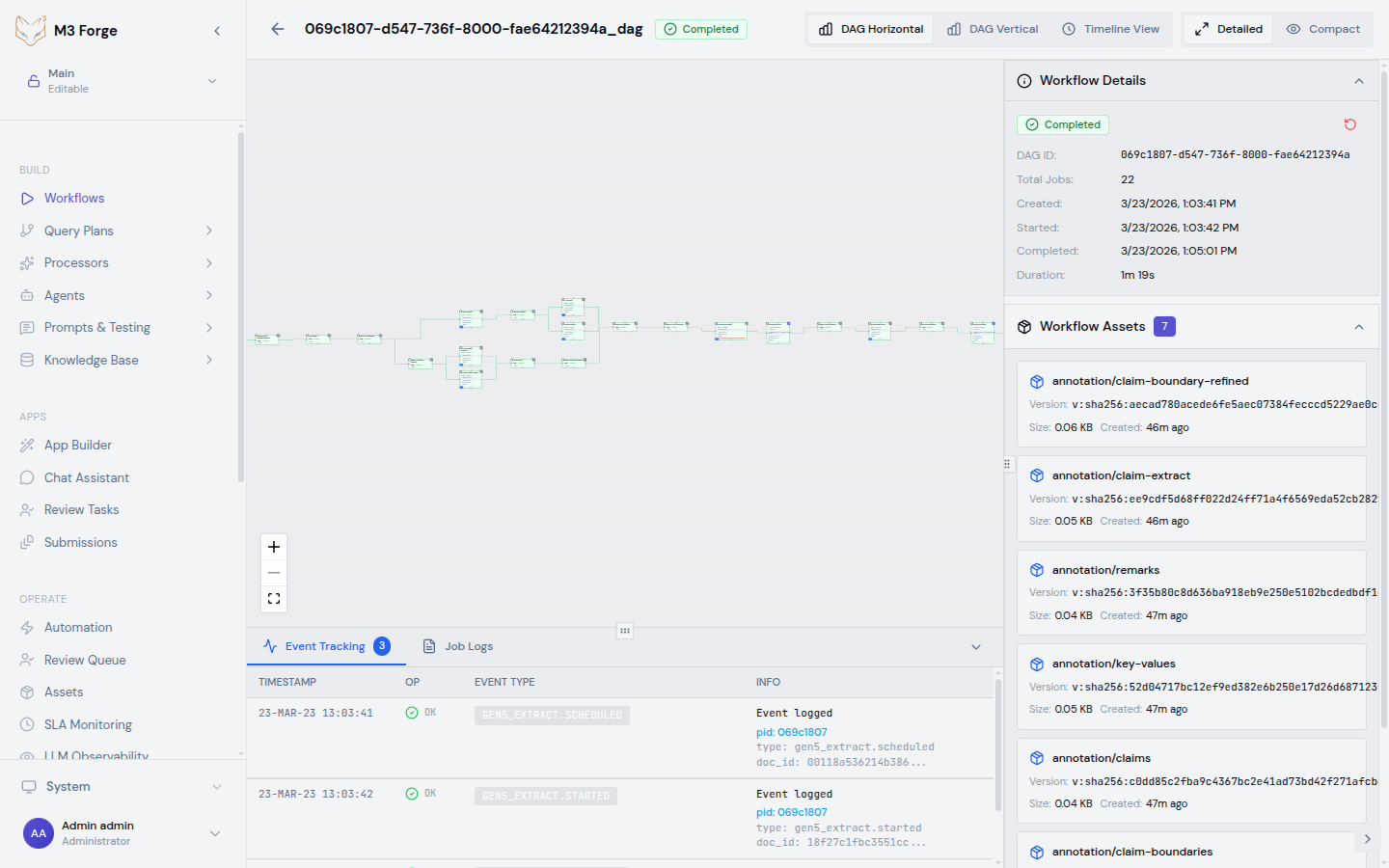
Accessing the Canvas
Navigate to the workflow editor:
- Click BUILD in the sidebar
- Select Workflows from the menu
- Click New Workflow or select an existing workflow to edit
Creating a Workflow
Add Nodes from Palette
Click on a node type in the left palette to add it to the canvas. Common node types:
- Prompt - Invoke LLMs (OpenAI, Anthropic, etc.)
- Code - Execute custom Python/JavaScript code
- Guardrail - Validate outputs with quality metrics
- HITL Approval - Pause for human review
Nodes appear at the canvas center. Drag them to arrange your pipeline.
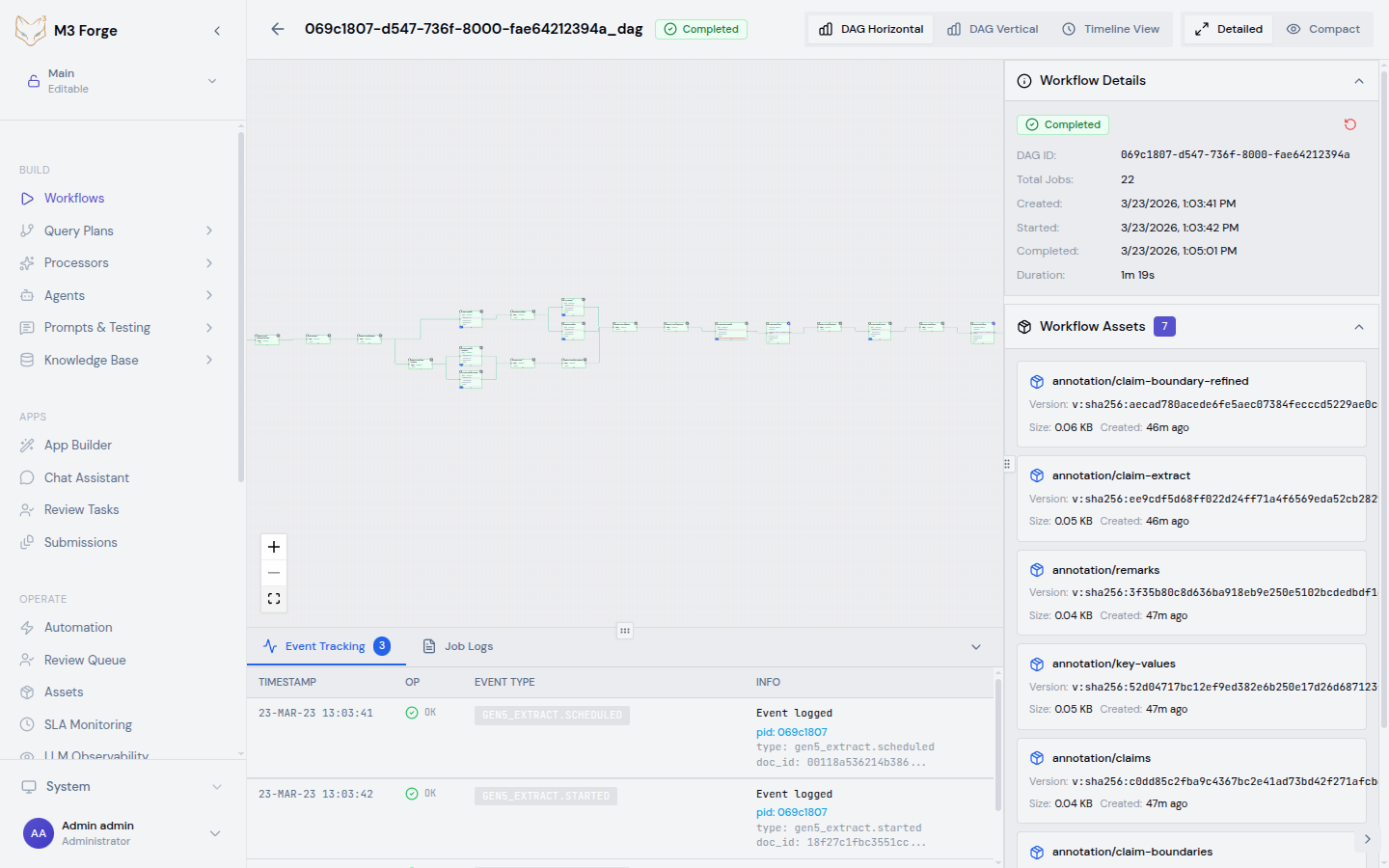
Connect Nodes
Click an output port (right side of node) and drag to an input port (left side of target node). The connection visualizes data flow.
Rules:
- Output ports can connect to multiple inputs (fan-out)
- Input ports accept only one connection (single parent)
- No cycles allowed (DAG constraint enforced)
Configure Node Parameters
Select a node to open the configuration panel on the right. Common settings:
| Setting | Description | Example |
|---|---|---|
| Node ID | Unique identifier | extract_invoice |
| Display Name | Human-readable label | ”Extract Invoice Data” |
| Input Source | JSONPath to input data | $.data.document |
| Parameters | Node-specific config | Model, temperature, thresholds |
Node IDs must be unique within a workflow and cannot be changed after creation without breaking downstream references.
Define Inputs and Outputs
Specify what data the workflow accepts and returns:
Workflow Inputs:
{
  "document": {
    "type": "string",
    "description": "Base64-encoded PDF document"
  },
  "options": {
    "type": "object",
    "description": "Processing options",
    "optional": true
  }
}
Workflow Outputs: Reference the final node’s output:
{
  "result": "$.nodes.format_output.output.data"
}
Test with Scenarios
Create test scenarios to validate your workflow:
- Click Test in the toolbar
- Click New Scenario
- Provide sample input matching your workflow input schema
- Click Run to execute the workflow
- Inspect outputs and logs for each node
Test scenarios are saved with the workflow for regression testing.
Save and Version
Click Save to persist your workflow. Workflows are versioned automatically:
- Draft state - Editable, not executable
- Active state - Published for execution
- Version history - Access previous versions via dropdown
Canvas Operations
Selection and Multi-Select
- Single select - Click a node or edge
- Multi-select - Cmd/Ctrl + click or drag selection box
- Select all - Cmd/Ctrl + A
Copying and Pasting
- Copy - Cmd/Ctrl + C (copies selected nodes with connections)
- Paste - Cmd/Ctrl + V (creates duplicates with new IDs)
Undo/Redo
- Undo - Cmd/Ctrl + Z
- Redo - Cmd/Ctrl + Shift + Z
Auto-Layout
Click Auto Layout in the toolbar to arrange nodes using the Dagre algorithm. This creates a clean left-to-right flow with minimal edge crossings.
Zoom and Pan
- Zoom in/out - Scroll wheel or pinch gesture
- Pan - Click and drag empty canvas area
- Fit to view - Click the fit-to-view icon in bottom-right controls
Advanced Features
Conditional Branching
Use Guardrail or HITL Router nodes to create conditional paths:
Configure multiple output paths in the node’s path configuration:
{
  "paths": [
    {
      "path_id": "pass",
      "target_node_ids": ["return_result"]
    },
    {
      "path_id": "fail",
      "target_node_ids": ["hitl_review"]
    }
  ]
}
Parallel Execution
Independent branches execute in parallel automatically:
The execution engine identifies parallelizable nodes and runs them concurrently to minimize total execution time.
Retry Logic
Create retry loops using fail paths that route back to earlier nodes:
Add retry count tracking in a Code node to prevent infinite loops.
Subworkflows
Reference other workflows as nodes (coming soon):
{
  "node_type": "SUBWORKFLOW",
  "definition": {
    "workflow_id": "extract_invoice_v2",
    "input_mapping": {
      "document": "$.data.file"
    }
  }
}
Best Practices
- Name nodes descriptively - Use action verbs like “Extract Fields”, “Validate Schema”, “Route to Team”
- Keep workflows focused - Limit to 10-15 nodes; use subworkflows for complex logic
- Add guardrails early - Validate LLM outputs before passing to expensive downstream operations
- Test incrementally - Run scenarios after adding each node to catch issues early
- Document assumptions - Add descriptions to nodes explaining their purpose and configuration choices
- Use auto-layout - Apply after major edits to maintain readability
Workflow execution is asynchronous. Test scenarios run synchronously for debugging but production runs are queued and tracked in the Runs view.
Example: Invoice Processing Workflow
Here’s a complete workflow for extracting and validating invoice data:
Extract Text
- Node type: Code
- Operation: OCR text extraction
- Input:
$.data.document
Extract Fields
- Node type: Prompt
- Model: GPT-4
- Prompt:
"Extract invoice_number, date, total_amount from: {text}" - Input:
$.nodes.extract_text.output
Validate Fields
- Node type: Guardrail
- Metrics: JSON schema validation, required fields check
- Pass threshold: 1.0 (strict)
- Paths: pass → format_output, fail → manual_review
Format Output
- Node type: Code
- Operation: Convert to standard format
- Input:
$.nodes.extract_fields.output
Manual Review
- Node type: HITL Correction
- Reviewers: accounts_payable team
- Next: extract_fields (retry with corrections)
Related Resources
- Node Catalog - All available node types
- Query Plans - AI agent orchestration patterns
- Triggers - Automate workflow execution
- Runs - Monitor and debug executions